
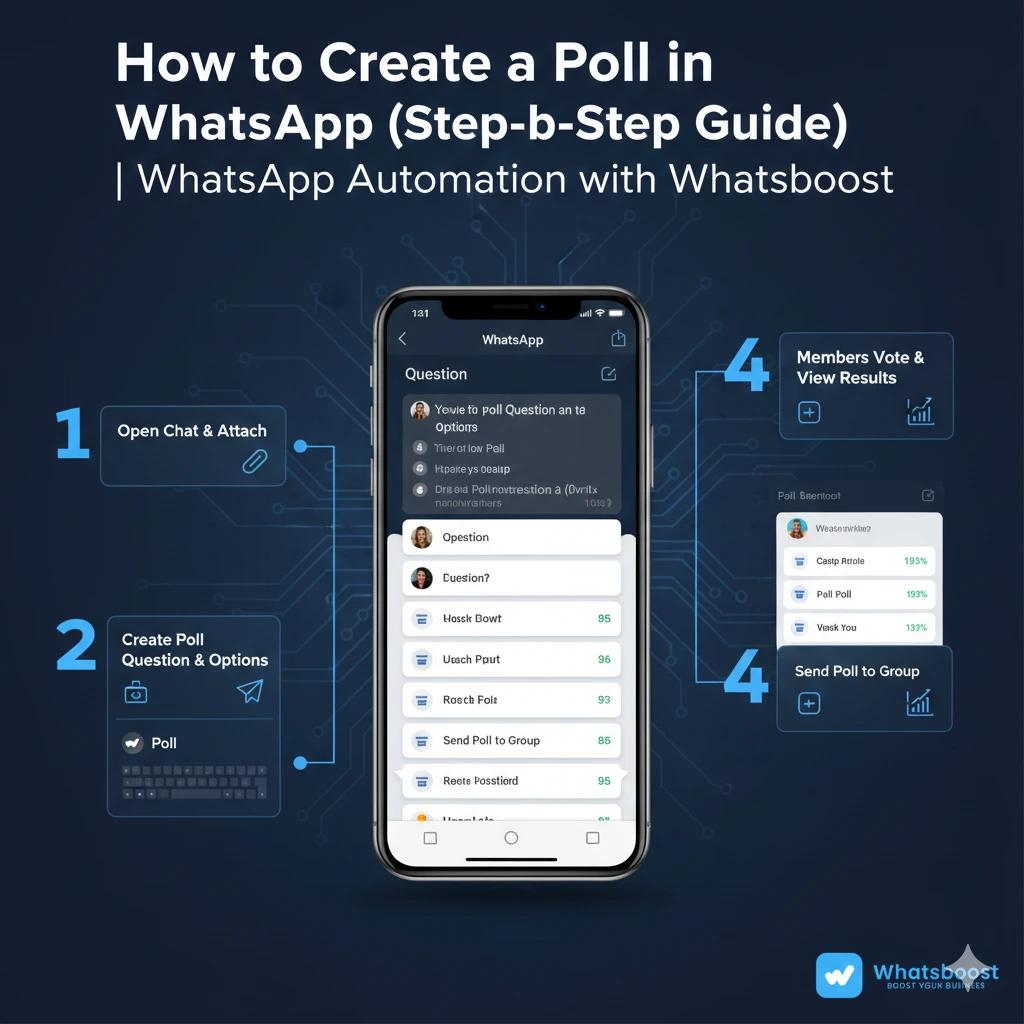
How to Create a Poll in WhatsApp (Step-by-Step Guide) | WhatsApp Automation with Whatsboost
Learn how to create a poll in WhatsApp with this step-by-step guide. Discover how WhatsApp polls work, best practices, use cases, and how WhatsApp Automation with Whatsboost enhances group management.
WhatsApp has evolved far beyond simple messaging. Today, it serves as a powerful communication platform for families, communities, businesses, and enterprise teams.
One of its most practical features is the ability to create a poll in WhatsApp. Whether you’re organizing an event, gathering team feedback, choosing meeting times, or simply asking friends where to eat, WhatsApp polls simplify group decision-making.
Instead of endless back-and-forth messages, polls centralize responses into a structured format.
In this complete guide, you’ll learn:
How to create a poll in WhatsApp
How to customize poll options
How to vote and view results
Best practices for using polls effectively
Business use cases
How WhatsApp Automation enhances group management at scale
What Are WhatsApp Polls?
The WhatsApp poll feature allows users to create a multiple-choice question within a chat or group. Participants can vote on one or multiple options, and results update in real time.
Key features include:
Up to 12 response options
Real-time vote tracking
Visible voter identities (not anonymous)
Available in individual and group chats
Works on mobile and WhatsApp Web
This feature is especially useful for business teams using WhatsApp as a coordination tool.
For businesses using WhatsApp extensively, combining polls with WhatsApp Automation tools can significantly enhance operational efficiency. Learn more here:
👉 https://whatsboost.in/whatsapp-automation
Why Create a Poll in WhatsApp?
Polls eliminate confusion and streamline decision-making.
Here are the main benefits:
Faster Decision-Making
Instead of 50 messages saying “I’m okay with Friday,” “Saturday works too,” or “Maybe Sunday?”, a poll centralizes all answers in one structured interface.
Higher Engagement
Polls encourage participation. Even passive group members are more likely to tap a vote than type a message.
Transparency
Everyone can see the results in real time. There’s no need to manually count responses.
Simplicity
Creating a poll takes less than a minute.
Ideal for Business Communication
Teams use polls to:
Choose meeting times
Prioritize tasks
Select campaign ideas
Vote on internal decisions
When combined with WhatsApp Automation, polls can become part of larger workflows.
Step-by-Step Guide: How to Create a Poll in WhatsApp

Follow these steps to create a poll in WhatsApp:
Step 1: Open WhatsApp and Select a Chat or Group
Open WhatsApp on your mobile device or desktop.
You can create a poll in:
A group chat
A one-on-one chat
Choose the conversation where you want to post the poll.
Step 2: Tap the Attachment Icon
Inside the chat window:
Tap the paperclip (Android)
Tap the "+" icon (iPhone)
This opens the attachment menu.
Step 3: Select “Poll”
From the available options, tap “Poll.”
This opens the poll creation interface.
Step 4: Enter Your Poll Question
In the text field provided, type your question.
Best practices:
Keep it clear and concise
Avoid ambiguity
Make options mutually exclusive when possible
Example:
“What time should we schedule the client meeting?”
Step 5: Add Response Options
You can add up to 12 options.
Tap “Add” to insert additional choices.
Example options:
Monday 10 AM
Monday 2 PM
Tuesday 11 AM
Wednesday 4 PM
Keep options simple and relevant.
Step 6: Configure Poll Settings
WhatsApp provides a few customization settings:
Allow Multiple Answers
You can enable or disable multiple selections.
If enabled, participants can vote for more than one option.
Visibility
Poll votes are not anonymous. Everyone can see who voted for what.
Step 7: Send the Poll
Once satisfied:
Tap “Send.”
Your poll is now live, and participants can begin voting immediately.
How to Vote in a WhatsApp Poll
Voting is simple.
Open the chat containing the poll
Tap on your chosen option(s)
Your vote is instantly recorded
If multiple answers are allowed, you can select more than one option.
You can also change your vote by tapping a different option.
Votes update in real time.
How to View Poll Results
WhatsApp automatically updates results as votes are cast.
To analyze poll data:
Observe vote counts next to each option
Tap “View Votes” to see individual participant selections
This makes polls transparent and easy to interpret.
Using WhatsApp Polls for Business & Professional Scenarios
While polls are great for casual conversations, they become powerful tools in business settings.
1. Event Planning
Polls help decide:
Event dates
Venue options
Catering preferences
Agenda topics
Instead of lengthy discussions, get instant consensus.
2. Internal Team Decisions
Teams can use polls to:
Choose meeting times
Vote on campaign ideas
Prioritize product features
Select project timelines
When managing multiple business groups, combining polls with structured WhatsApp management tools ensures smoother operations.
Explore structured team workflows here:
👉 https://whatsboost.in/features
3. Customer Feedback
Businesses can use WhatsApp polls to:
Gather product feedback
Measure satisfaction
Test new ideas
Conduct quick surveys
For example:
“How would you rate our recent service?”
Polls provide fast, structured responses.
4. Community Management
Community admins use polls to:
Decide event schedules
Choose discussion topics
Organize group activities
For large communities, structured WhatsApp Automation tools can help manage engagement at scale.
Limitations of WhatsApp Polls
While helpful, WhatsApp polls have limitations:
No anonymous voting
No advanced analytics
No export functionality
No automated follow-ups
No integration with CRM systems
For casual use, this is fine.
For business use at scale, additional tools are often needed.
That’s where WhatsApp Automation platforms like Whatsboost come into play.
How WhatsApp Automation Enhances Poll Usage
If your organization manages 10+ WhatsApp Groups, you may face challenges like:
Tracking engagement
Managing large-scale responses
Integrating poll insights into workflows
Following up with non-respondents
Whatsboost enhances WhatsApp functionality by adding:
Centralized dashboards
Analytics tracking
CRM integration
Automated workflows
Role-based team access
AI-powered automation
Learn more here:
👉 https://whatsboost.in/
Best Practices for Creating Effective WhatsApp Polls
To maximize participation and clarity:
Keep Questions Simple
Avoid complex or multi-layered questions.
Limit Response Options
Although 12 options are allowed, 3–5 options work best.
Use Polls Strategically
Don’t overuse polls. They should solve a decision problem.
Monitor Engagement
If votes are low, send a reminder.
Use Automation for Business Follow-Ups
For example:
If a poll indicates dissatisfaction → trigger support workflow
If majority selects a date → automatically send calendar invites
This is where WhatsApp Automation becomes powerful.
WhatsApp Polls vs Traditional Messaging
Traditional group messaging often results in:
Long threads
Duplicate answers
Confusion
Manual counting
Polls simplify everything.
When paired with WhatsApp Automation, the experience becomes structured, measurable, and scalable.
Frequently Asked Questions: How to Create a Poll in WhatsApp
1. Can I create a poll in a one-on-one chat?
Yes. WhatsApp allows polls in both individual and group chats.
2. Are WhatsApp polls anonymous?
No. Participants can see who voted for each option.
3. How many options can I add?
You can add up to 12 response options.
4. Can I edit a poll after sending it?
No. Once sent, you cannot edit the poll question or options.
5. Can I change my vote?
Yes. You can select a different option anytime before the poll closes.
6. Is the poll feature available on WhatsApp Web?
Yes. You can create and vote in polls via web.whatsapp.com as well.
FAQs About Whatsboost Automation
1. What is Whatsboost?
Whatsboost is a WhatsApp Automation platform that helps businesses manage WhatsApp Groups, chats, analytics, automation workflows, CRM integrations, and AI-powered responses.
2. Can Whatsboost track poll engagement?
Yes. When managing multiple groups, Whatsboost provides centralized visibility and analytics across conversations.
3. Does Whatsboost require WhatsApp Business API?
No. It works with regular WhatsApp accounts.
4. Can Whatsboost automate follow-ups based on poll results?
Yes. Automation rules can trigger actions based on keywords or engagement patterns.
5. Is Whatsboost suitable for large teams?
Yes. It supports role-based access and multi-agent collaboration.
6. Can Whatsboost integrate with CRM or helpdesk systems?
Yes. It supports CRM integrations to sync WhatsApp conversations with your existing tools.
Final Thoughts
Creating a poll in WhatsApp is simple, intuitive, and highly effective for gathering opinions and making decisions quickly.
Whether you’re coordinating dinner plans, scheduling meetings, or collecting customer feedback, polls eliminate confusion and streamline communication.
For casual users, WhatsApp polls are enough.
For businesses managing multiple groups, large communities, or high message volumes, combining polls with structured WhatsApp Automation unlocks a new level of efficiency.
If WhatsApp plays a central role in your operations, it’s worth exploring tools that transform it from a messaging app into a structured communication system.
👉 Start optimizing your WhatsApp workflows: https://whatsboost.in/
Make your WhatsApp conversations smarter, more organized, and more impactful.
Want to automate WhatsApp for your business?
Set up campaigns, replies, and follow-ups in minutes.