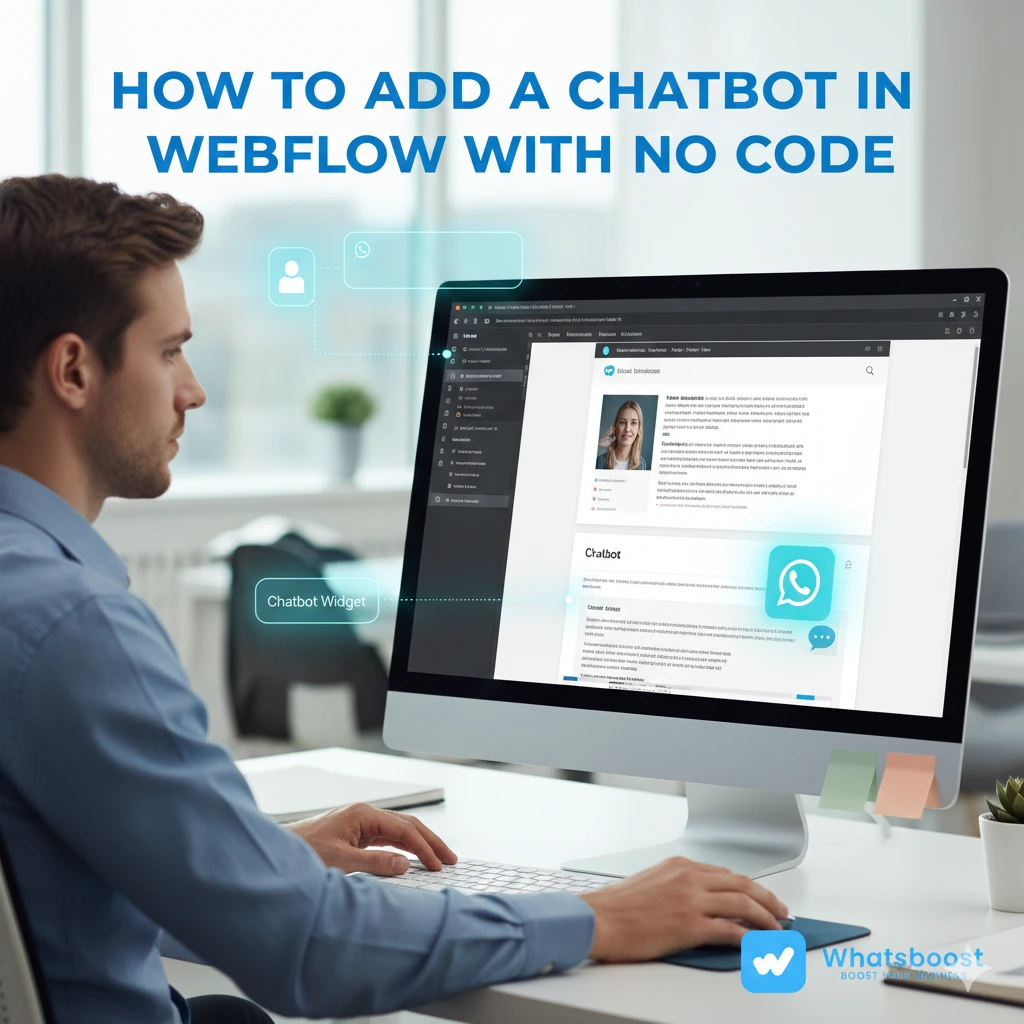
How to Add a Chatbot in Webflow with No Code | Step-by-Step Guide (2026)
Learn how to add a chatbot in Webflow with no code using Whatsboost. Step-by-step guide to integrate a Webflow chatbot, automate conversations, capture leads, and boost conversions effortlessly.
What is Webflow?
Webflow is a cloud-based CMS platform that allows businesses, designers, and marketers to design, build, and host websites without heavy development dependencies. Unlike traditional website builders, Webflow combines visual design flexibility with powerful CMS capabilities.
With Webflow, you can:
-
Design responsive websites visually
-
Manage content using CMS collections
-
Host your website securely
-
Publish changes instantly
-
Add custom code when needed
Because Webflow is widely used by startups, SaaS companies, agencies, and D2C brands, adding a chatbot to a Webflow website has become essential for lead capture, customer support, and automation.
In this guide, we’ll show you how to add a chatbot in Webflow with no code using Whatsboost, and how to automate conversations to improve conversions.
Why Add a Chatbot to Your Webflow Website?
Before we jump into the steps, let’s understand the business intent.
When someone visits your Webflow site, they may want:
-
Instant product clarification
-
Pricing details
-
Demo booking
-
WhatsApp support
-
FAQs answered immediately
If no one responds instantly, you lose the lead.
Adding a chatbot to your Webflow site helps you:
-
Capture leads 24/7
-
Automate responses
-
Reduce manual support workload
-
Route high-intent users to sales
-
Collect phone numbers via WhatsApp
-
Boost conversions without hiring more agents
With a no code chatbot integration, even non-technical teams can deploy automation in minutes.
What You Need Before Adding a Chatbot in Webflow
To add a chatbot to Webflow without coding knowledge, you’ll need:
-
A live Webflow website
-
A Whatsboost account
-
Access to Webflow Project Settings
-
Whatsboost Chat Widget Install Script
That’s it.
No developers.
No backend work.
No complex integrations.
How to Add a Chatbot in Webflow with No Code (Step-by-Step)
Follow these steps carefully.
Step 1: Sign Up on Whatsboost
Start by creating a free trial account on Whatsboost.
Once inside the dashboard:
-
Create your chatbot flow
-
Define automated replies
-
Add lead capture questions
-
Connect your WhatsApp Business number
-
Set up fallback to human agent (if required)
Make sure your chatbot is published before moving to Webflow.
Step 2: Log into Your Webflow Account
-
Open your Webflow dashboard
-
Select the website where you want to add the chatbot
-
Click on “Designer” to open design mode
Step 3: Go to Project Settings
In the Webflow Designer:
-
Click on the “W” icon on the top left
-
Select Project Settings
-
Navigate to the Custom Code section
This is where we’ll insert the Whatsboost chatbot script.
Step 4: Add Whatsboost Chat Widget Script
Inside the Custom Code section:
-
Scroll to the Footer Code area
-
Paste the Whatsboost Install Script provided in your dashboard
-
Click Save Changes
This script loads the chatbot widget on your Webflow website.
There is no coding required — just copy and paste.
Step 5: Publish Your Website
After saving:
-
Click on the “Publish” button (top right corner)
-
Select your domain
-
Click Publish
Once published, the chatbot will appear on your live Webflow website.
Step 6: Test the Chat Widget
Visit your website and:
-
Click on the chatbot icon
-
Trigger conversation flows
-
Check lead capture
-
Verify WhatsApp redirection (if enabled)
Your Webflow chatbot integration is now complete.
How Whatsboost Works with Webflow
Whatsboost provides:
-
WhatsApp automation
-
Chat widget for website
-
Lead qualification flows
-
CRM tagging
-
Automated follow-ups
-
Agent takeover
When someone chats on your Webflow site:
-
The chatbot greets them
-
Collects name & phone number
-
Asks qualifying questions
-
Sends data to Whatsboost dashboard
-
Optionally pushes conversation to WhatsApp
-
Notifies sales team
This entire process runs automatically.
Use Cases of Adding a Chatbot in Webflow
Here’s how different businesses use Webflow chatbot integration:
SaaS Companies
-
Demo booking automation
-
Pricing qualification
-
Plan recommendation
D2C Brands
-
Order support
-
Abandoned cart recovery
-
Product recommendations
Agencies
-
Client onboarding
-
Service selection
-
Proposal scheduling
Coaches & Consultants
-
Free consultation booking
-
Webinar reminders
-
WhatsApp follow-ups
Why Choose Whatsboost Instead of Basic Chat Widgets?
Many website chat widgets only provide live chat.
Whatsboost gives you:
-
WhatsApp automation
-
CRM tagging
-
Lead segmentation
-
Broadcast messaging
-
Automated drip campaigns
-
Multi-agent dashboard
-
Analytics tracking
So instead of just adding a chatbot, you’re building a complete automation engine.
SEO Benefits of Adding a Chatbot to Webflow
Yes, chatbots indirectly help SEO.
Here’s how:
-
Increase dwell time
-
Reduce bounce rate
-
Improve user engagement
-
Capture search traffic leads
-
Improve conversion metrics
Google tracks user behaviour.
When users engage longer, it signals relevance.
Best Practices When Adding a Chatbot in Webflow
To maximize results:
Keep the Greeting Clear
Instead of:
“Hi, how can I help?”
Use:
“Looking for pricing, demo, or WhatsApp support?”
Keep Options Simple
Too many options reduce engagement.
Always Capture Phone Number
WhatsApp follow-up increases conversion rates drastically.
Add Human Fallback
If chatbot fails → agent should step in.
Advanced Automation Ideas with Whatsboost
Once your chatbot is live, you can:
1. Automate Demo Reminders
Send WhatsApp reminders before demo calls.
2. Tag Leads Automatically
High-intent vs Low-intent tagging.
3. Trigger Payment Reminders
Automate invoice follow-ups via WhatsApp.
4. Run WhatsApp Drip Campaigns
Educate leads automatically over 7 days.
Internal Linking Strategy for Whatsboost.in
To strengthen SEO authority, interlink this blog with:
-
“WhatsApp Automation for Indian Businesses”
-
“Best WhatsApp Chatbot for Website Lead Generation”
-
“How to Automate Payment Reminder Messages on WhatsApp”
-
“WhatsApp CRM Integration Guide”
-
“WhatsApp Drip Campaign Strategy for SaaS”
Anchor Text Suggestions:
-
Add WhatsApp Automation
-
WhatsApp Chatbot for Website
-
Webflow WhatsApp Integration
-
No Code Chatbot Setup
-
Automate Conversations with Whatsboost
This helps build topical authority.
Common Mistakes to Avoid
-
Forgetting to publish Webflow site
-
Adding script in Head instead of Footer
-
Not testing mobile version
-
Not setting fallback rule
-
Not connecting WhatsApp number
How Adding a Chatbot Increases Conversions
Without chatbot:
Visitor → Reads → Leaves
With chatbot:
Visitor → Engages → Shares Phone → Moves to WhatsApp → Sales Follow-up → Conversion
That’s the difference between traffic and revenue.
FAQs About Adding a Chatbot in Webflow
Can I add a chatbot in Webflow without coding?
Yes. By using Whatsboost, you can add a chatbot in Webflow with no code. Just paste the install script in the Footer section and publish.
Does Webflow support custom chatbot scripts?
Yes. Webflow allows custom code integration via Project Settings → Custom Code.
Will adding a chatbot slow down my Webflow website?
No. Whatsboost uses lightweight script loading to ensure minimal performance impact.
Can I connect WhatsApp to Webflow chatbot?
Yes. Whatsboost allows Webflow chatbot to redirect conversations to WhatsApp automatically.
Is Webflow chatbot good for lead generation?
Absolutely. It helps capture visitor data instantly and automates follow-ups.
FAQs About Whatsboost Automation
What is Whatsboost?
Whatsboost is a WhatsApp automation platform that helps businesses automate customer conversations, capture leads, and increase conversions.
Can Whatsboost handle multiple agents?
Yes. It supports multi-agent dashboards and live chat takeover.
Does Whatsboost support CRM integration?
Yes. You can integrate with CRMs and segment leads automatically.
Can I automate payment reminders?
Yes. Whatsboost allows automated payment reminder campaigns via WhatsApp.
Is Whatsboost suitable for small businesses?
Yes. It is ideal for startups, D2C brands, SaaS, agencies, and service businesses.
Final Thoughts
Adding a chatbot in Webflow with no code is no longer a technical task.
With Whatsboost, you can:
-
Automate conversations
-
Capture leads instantly
-
Move users to WhatsApp
-
Improve conversion rates
-
Reduce manual workload
In today’s competitive market, speed wins.
If your Webflow website doesn’t respond instantly, your competitor will.
Start automating today.
Want to automate WhatsApp for your business?
Set up campaigns, replies, and follow-ups in minutes.