How to Send Instant WhatsApp Messages From WPForms Submissions in 2026 | Whatsboost
Learn how to send instant WhatsApp messages from WPForms submissions in 2026. Discover step-by-step setup, practical workflows, and how Whatsboost helps Indian businesses automate WhatsApp responses to every WordPress form submission automatically.
WordPress powers a significant proportion of Indian business websites — and WPForms is one of the most widely used form builders on WordPress, handling everything from contact enquiries and lead generation forms to booking requests, event registrations, and customer feedback submissions. Every time a visitor submits a WPForms form, they are expressing an intent that deserves an immediate, personalised response.
The problem is that most Indian businesses are still responding to WPForms submissions the slow way — through email notifications that sit unread for hours, or through periodic manual reviews of form entries that create response delays of an entire working day or more. In a competitive environment where the first business to respond wins the lead in the majority of cases, this delay is a direct, measurable revenue loss.
In 2026, sending instant WhatsApp messages from WPForms submissions — both to the person who submitted the form and to the sales or support rep responsible for following up — is the most impactful single improvement most Indian WordPress businesses can make to their lead response process. This blog explains exactly how to build this automation, and how Whatsboost powers the WhatsApp delivery layer that makes it work in real time.
Why Instant WhatsApp Responses to WPForms Submissions Drive Higher Conversions
The connection between response speed and conversion rate is one of the most consistently documented findings in B2B and B2C sales research. A lead contacted within five minutes of submitting a form is dramatically more likely to convert than one contacted 30 minutes later — and exponentially more likely than one contacted the following day.
For Indian businesses operating in real estate, EdTech, financial services, professional services, and e-commerce, where WPForms handles the majority of inbound enquiries, this speed-to-response gap is a conversion problem hiding in plain sight. The form is being submitted. The leads are arriving. They are simply not being contacted fast enough to convert at the rate they could.
WhatsApp changes the response dynamic entirely. An instant WhatsApp message sent to a form submitter — arriving on the same device where the prospect is browsing — confirms their submission, introduces the business, and opens a direct conversation thread within seconds. The prospect is still engaged. Their intent is still warm. And the business has established a WhatsApp conversation thread that makes every subsequent follow-up feel like a natural continuation rather than a cold outreach.
Whatsboost provides the WhatsApp Business API and automation capabilities that deliver these instant responses from WPForms submissions without any manual step. Visit Whatsboost.in to explore the platform.
What Happens When You Connect WPForms to WhatsApp via Whatsboost
When the WPForms to WhatsApp automation is active, the submission flow changes fundamentally for both the prospect and the sales team.
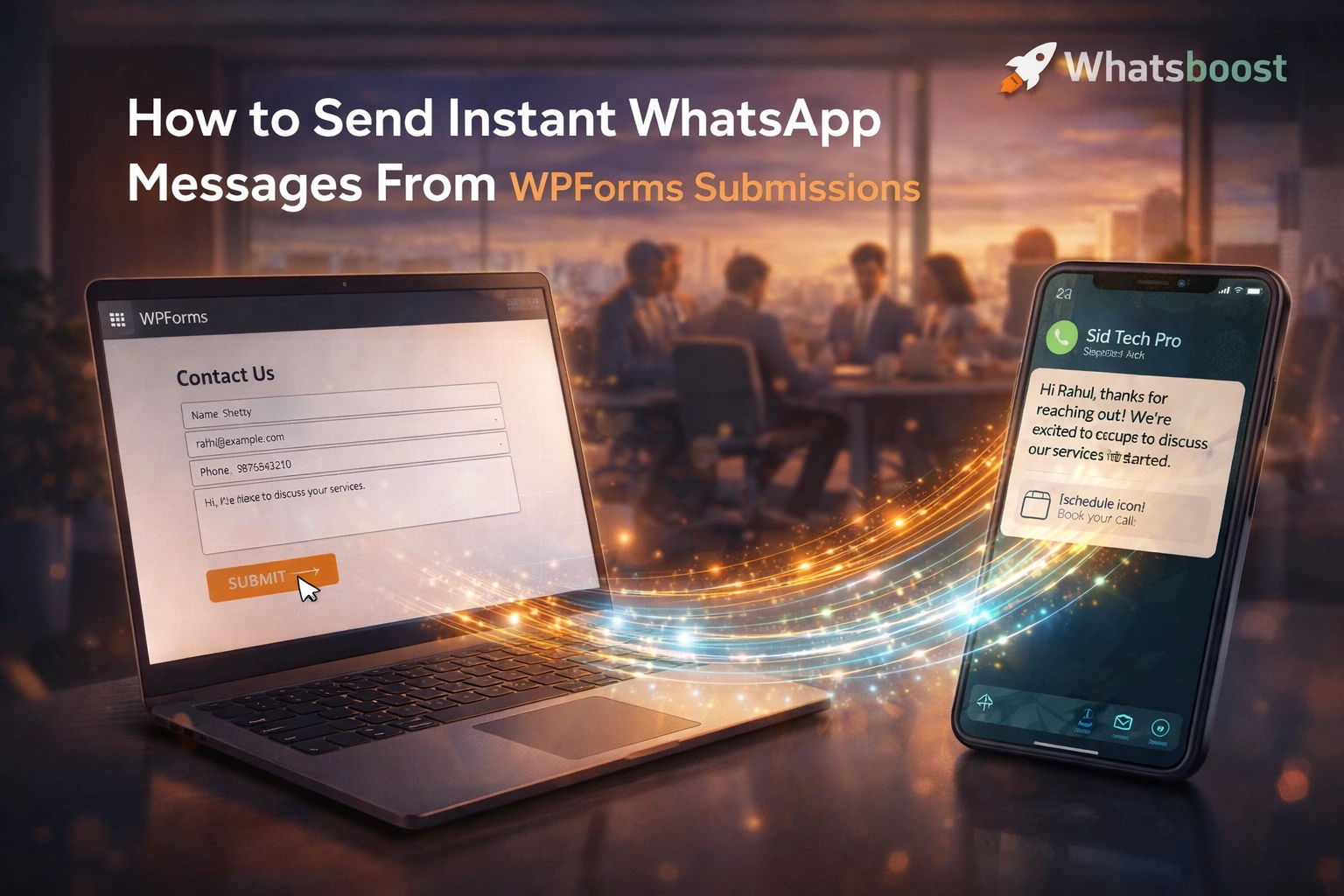
From the prospect's perspective: they submit your WPForms contact form, booking form, or lead generation form and within seconds receive a personalised WhatsApp message — addressed by name, acknowledging the specific form they submitted, confirming next steps, and optionally presenting a button option to connect immediately or schedule a call. The experience feels immediate, professional, and attentive.
From the sales team's perspective: the moment the form is submitted, the assigned rep receives a WhatsApp notification — containing the submitter's name, phone number, the specific form they filled in, all submitted field values, and a one-tap link to initiate a WhatsApp conversation with the lead directly. The rep has complete context for a relevant, personalised first contact without reviewing a CRM dashboard or checking an email inbox.
Both messages fire simultaneously — form submitter and sales rep receive their respective WhatsApp messages at the same moment — creating a coordinated instant response that no manual process can replicate.
Building the WPForms to WhatsApp Automation With Whatsboost
Step 1: Activate WhatsApp Business API via Whatsboost
Automated, scalable WhatsApp message delivery from WPForms submissions requires the WhatsApp Business API. Whatsboost is an authorised WhatsApp Business Solution Provider that activates your API with comprehensive onboarding support — the essential foundation for all form-triggered WhatsApp automation. Start at Whatsboost.in.
Step 2: Ensure Your WPForms Collects the Submitter's Phone Number
For WhatsApp automation to work, your WPForms form needs a phone number field — and that field needs to collect numbers in a format compatible with WhatsApp delivery. Add a phone number field to every form where you intend to trigger WhatsApp messages, and configure the field with validation to ensure numbers include the country code or can be standardised to international format before being passed to Whatsboost.
For Indian phone numbers, this means ensuring the +91 country code is either collected from the submitter or added programmatically in the automation workflow before the number is passed to Whatsboost's API.
Step 3: Connect WPForms to Whatsboost via Zapier, Make, or Pabbly Connect
WPForms integrates with Zapier, Make, and Pabbly Connect natively — enabling every new form submission to trigger an automation workflow. In your chosen platform, create the following workflow:
Trigger — New WPForms submission received.
Action 1 — Standardise the phone number — Format the submitted phone number to international format — adding +91 for Indian numbers, removing spaces, dashes, and brackets — ensuring Whatsboost can deliver the WhatsApp message correctly.
Action 2 — Send the submitter acknowledgement via Whatsboost — Trigger a personalised WhatsApp message to the form submitter — using their submitted name in the greeting, referencing the specific form or service they enquired about, confirming the next step (a callback, a consultation, a booking confirmation), and optionally presenting a tap-to-reply button for immediate engagement.
Action 3 — Send the rep notification via Whatsboost — Trigger a structured WhatsApp lead alert to the assigned sales or support rep — containing the submitter's full name, phone number, the form name or campaign source, all form field values as a formatted summary, and a one-tap wa.me link to initiate a WhatsApp conversation with the lead instantly.
Action 4 — Log the submission in CRM or Google Sheets — Simultaneously create or update a contact record in your CRM — HubSpot, Zoho, Freshsales — or append a row to a Google Sheet tracking form submissions — ensuring the lead is formally entered into your pipeline with source attribution, submission timestamp, and form field data preserved.
Step 4: Configure Form-Specific WhatsApp Message Templates
Different WPForms forms serve different purposes — a contact enquiry form, a free consultation request form, a webinar registration form, and a pricing request form all represent different lead intents and warrant different acknowledgement messages. Create a separate WhatsApp message template in Whatsboost for each form type — ensuring the submitter receives a message that specifically acknowledges what they signed up for rather than a generic "thank you for your enquiry" response.
WhatsApp message templates used for automated responses need to be approved through the WhatsApp Business API process. Whatsboost guides you through template submission and approval — ensuring your templates are live and ready to deploy before activating the form submission automation.
Step 5: Build Form-Specific Rep Routing Logic
For businesses with multiple products, services, or geographic markets — each handled by different sales reps or teams — configure routing logic in your automation workflow that assigns each WPForms form to the appropriate rep or team:
A form enquiry about Product A routes to the Product A sales rep. A booking request from a specific city routes to the regional team. A high-value enterprise enquiry detected through a specific form field — company size, budget range — routes to the senior account manager. This routing logic ensures every WPForms lead is handled by the most qualified and relevant rep from the first contact — maximising conversion potential without adding manual triage overhead. Visit Whatsboost.in for routing configuration options.
WPForms Use Cases That Benefit Most From WhatsApp Automation
Lead generation and consultation request forms — The highest-intent form submission on most Indian service business websites. Instant WhatsApp acknowledgement to the submitter, combined with an immediate rep alert, captures lead intent at its peak and initiates a sales conversation before competing businesses even receive their email notification.
Event and webinar registration forms — When a prospect registers for a webinar or event through WPForms, an instant WhatsApp confirmation — with the event date, time, and joining instructions — is dramatically more likely to be seen and remembered than a confirmation email. A WhatsApp reminder sent 24 hours before the event further reduces no-show rates significantly.
Customer feedback and complaint forms — When a customer submits a complaint or feedback form, an instant WhatsApp acknowledgement — confirming receipt and providing a resolution timeline — manages the customer's emotional state immediately and sets professional expectations before a human team member is available to respond.
Booking and appointment request forms — When a prospect submits a booking request through WPForms, an instant WhatsApp confirmation — with their requested date, the service they booked, and next steps — prevents the anxiety of wondering whether the booking was received and reduces the likelihood of the prospect booking with a competitor while waiting for email confirmation.
Best Practices for WPForms to WhatsApp Automation
Always use an approved WhatsApp message template for the initial response. WhatsApp's Business API policy requires that the first message in a new conversation uses an approved template. Design your acknowledgement templates to be genuinely helpful and brand-consistent — not just compliance text — so the first WhatsApp impression the form submitter receives reflects your brand's communication quality.
Include a clear call to action in every submitter acknowledgement message. An acknowledgement message that simply says "we received your form" provides no path forward for the prospect. Include a specific next step — "tap to confirm your consultation time," "reply to share more details," or "click to view our pricing" — that converts the acknowledgement into an engagement prompt.
Monitor rep response times after WhatsApp alerts. The WhatsApp notification is only valuable if the rep acts on it promptly. Track the time between the rep's WhatsApp alert and their first outbound WhatsApp contact to the lead. Use Whatsboost analytics to identify reps who are consistently slow to respond and address the gap before it becomes a systematic conversion problem.
Every WPForms Submission Is a Prospect at Peak Intent — Respond in Seconds
In 2026, Indian businesses that respond to WPForms submissions with an instant WhatsApp message convert leads at dramatically higher rates than those relying on email notifications and manual follow-up cycles. The automation is straightforward to build, the technology is proven, and the impact on lead conversion is immediate and measurable.
With Whatsboost powering your WhatsApp Business API layer and your automation platform connecting it to WPForms, every form submission triggers an instant, personalised WhatsApp response — reaching the prospect where they are, when their intent is highest, before any competitor has a chance to respond.
Visit Whatsboost.in and start sending instant WhatsApp messages from your WPForms submissions today.
Want to automate WhatsApp for your business?
Set up campaigns, replies, and follow-ups in minutes.