Sending WhatsApp Notifications in WhatsApp Group for Every WPForms Submission in 2026 | Whatsboost
Learn how to send WhatsApp group notifications for every WPForms submission in 2026. Discover step-by-step setup, practical workflows, and how Whatsboost helps Indian businesses alert their entire team on WhatsApp the moment a WordPress form is submitted.
Every WPForms submission on your WordPress website represents a moment of expressed intent — a visitor who has moved from passive browsing to active engagement. Whether it is a contact enquiry, a pricing request, a booking form, a callback form, or a lead generation form, each submission is an opportunity that has a short window before the prospect's attention moves elsewhere.
For Indian businesses where sales teams, support staff, and operations teams coordinate on WhatsApp throughout the working day, the fastest and most reliable way to ensure every team member knows about a new WPForms submission — in real time — is to send a WhatsApp group notification the moment each form is submitted.
In 2026, automating WhatsApp group notifications for every WPForms submission is one of the simplest, highest-impact workflows an Indian WordPress business can implement. This blog explains precisely how to build this notification system — and how Whatsboost powers the WhatsApp delivery layer that makes every WPForms submission immediately visible to your entire team.
Why WhatsApp Group Notifications Beat Email Alerts for WPForms Submissions
Most Indian WordPress businesses rely on WPForms' built-in email notification system to alert their team about new submissions. Email notifications work — but they work slowly, inconsistently, and in a channel that most Indian business teams monitor far less attentively than WhatsApp.
Email alerts arrive in an inbox competing with dozens of other messages. A WPForms submission notification buried three messages below a client email and two below a newsletter is unlikely to be seen within the first 30 minutes. A WhatsApp group notification in the team's active project or sales group is seen within minutes of delivery — because WhatsApp is open and active throughout the working day in a way that email is not.
Email notifications do not create a response-triggering environment. When a team member sees a new WPForms submission in a WhatsApp group notification, the conversational context of the group encourages immediate action — "I will call this one," "I have already messaged them," "This looks like a high-value lead." Email notifications, by contrast, are processed individually and silently — with no team coordination or accountability visible to anyone else.
WhatsApp group notifications enable immediate team coordination. For Indian businesses where multiple team members share lead follow-up responsibilities — a sales team, a support rota, a regional coverage structure — the WhatsApp group format allows the team to coordinate ownership of each new submission in real time, preventing both the duplication of two reps calling the same lead and the abandonment of a lead that everyone assumed someone else was handling.
Whatsboost provides the WhatsApp Business API and automation infrastructure that delivers these group notifications reliably for every WPForms submission, at any volume, without manual effort. Visit Whatsboost.in to explore the platform.
What a WhatsApp Group Notification for a WPForms Submission Looks Like
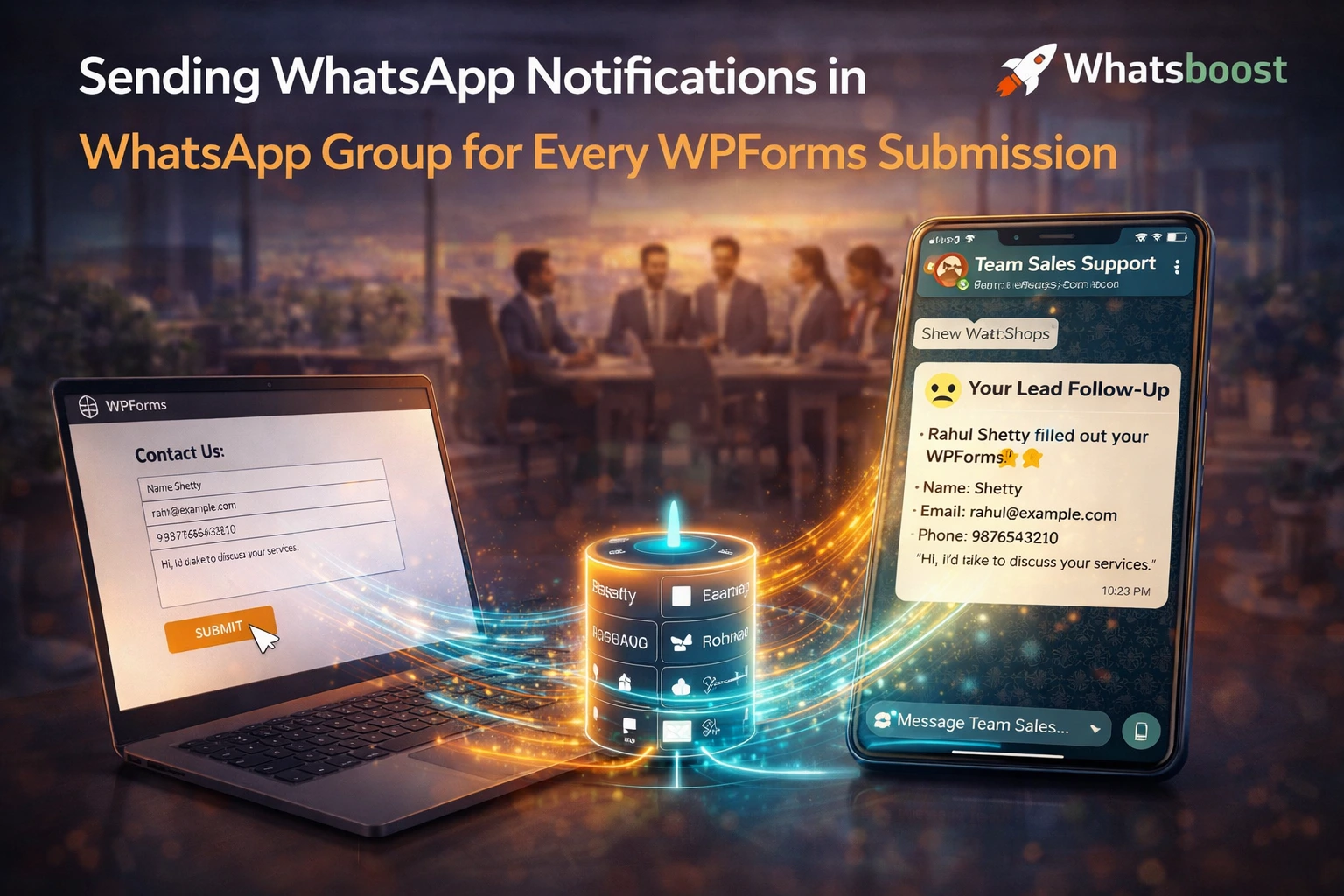
A well-formatted WPForms WhatsApp group notification delivers everything the team needs to assess the lead and initiate contact — in a single, scannable message:
New Lead — [Form Name] Name: [Submitter Name] Phone: [Phone Number — tappable wa.me link] Email: [Email Address] Enquiry: [Submitted message or service selected] Source: [Form source / UTM campaign if captured] Time: [Submission timestamp]
Action: Tap the number above to message [Name] on WhatsApp now.
This format — clear, structured, with a one-tap contact link — allows any team member reading the notification to initiate WhatsApp contact with the lead in a single tap, without leaving WhatsApp or searching for the lead's details in a separate system.
Building WPForms to WhatsApp Group Notification Automation With Whatsboost
Step 1: Activate WhatsApp Business API via Whatsboost
Sending automated WhatsApp messages to groups at scale requires the WhatsApp Business API. Whatsboost is an authorised WhatsApp Business Solution Provider that activates your API with guided onboarding — the foundational step for all WPForms WhatsApp group notification workflows. Start at Whatsboost.in.
Step 2: Set Up Your Team WhatsApp Groups in Whatsboost
Configure the WhatsApp groups that will receive WPForms submission notifications through Whatsboost's shared team inbox. For most Indian businesses, this means one or more of the following group configurations:
Sales group — All sales reps and the sales manager receive every lead form submission notification — enabling immediate team coordination on follow-up ownership.
Support group — The support team receives every support request or callback form submission — enabling rapid assignment and acknowledgement.
Operations group — The operations team receives every booking, appointment, or service request form submission — enabling immediate scheduling and confirmation.
For businesses with multiple product lines or geographic regions, configure separate groups for each — ensuring sales reps only receive notifications for the leads relevant to their remit, reducing notification overload while maintaining complete coverage.
Step 3: Connect WPForms to Whatsboost via Zapier, Make, or Pabbly Connect
WPForms connects to Zapier, Make, and Pabbly Connect natively — enabling every new submission to trigger an automation workflow. Build the following sequence:
Trigger — New WPForms submission received.
Action 1 — Standardise phone number — Format the submitted number to international format (+91 for Indian leads) — adding the country code, removing spaces and special characters — so the wa.me link in the group notification is tappable and deliverable.
Action 2 — Identify the target group — Use the form name or form ID in the submission webhook payload to determine which WhatsApp group the notification should be delivered to. A lead generation form routes to the sales group. A support request form routes to the support group. A booking form routes to the operations group.
Action 3 — Format the notification message — Construct the structured notification message using dynamic fields from the WPForms submission data — name, phone, email, message content, form name, timestamp — and format it for clear, rapid scanning in a WhatsApp group context.
Action 4 — Send the group notification via Whatsboost — Deliver the formatted notification message to the identified WhatsApp group through Whatsboost's API — ensuring every group member sees the new submission within seconds of the form being submitted on the website.
Action 5 — Send submitter acknowledgement — Simultaneously, trigger Whatsboost to send a personalised WhatsApp message to the form submitter — confirming receipt, setting response time expectations, and opening the conversation thread that the assigned rep will use for follow-up.
Step 4: Add Submission Categorisation for High-Volume Forms
For businesses receiving high WPForms submission volumes, add a categorisation layer to your automation before the group notification is sent. Use conditional logic in your automation platform to detect high-priority indicators in the submission data — large company names, enterprise budget ranges, urgent timeline mentions, premium service selections — and modify the notification message for these submissions to include a priority flag visible in the group notification.
A standard lead notification might begin "New Lead —" while a high-priority lead notification begins "🔴 HIGH PRIORITY Lead —" — immediately distinguishing submissions that warrant faster team response without creating separate workflows for each submission type. Visit Whatsboost.in to explore how conditional notification formatting is configured.
Step 5: Log Every Submission in CRM or Google Sheets Alongside the Notification
Configure your automation to simultaneously log every WPForms submission in your CRM — HubSpot, Zoho, Freshsales — or Google Sheets alongside the WhatsApp group notification. The CRM record ensures that even if the WhatsApp group notification is seen but not immediately acted on, the lead exists in the formal pipeline with a creation timestamp and a first-contact due date that creates accountability beyond the WhatsApp group.
The WhatsApp group notification drives immediate awareness and action. The CRM entry ensures accountability and long-term tracking. Together, they provide complete lead coverage from submission to conversion.
Advanced WhatsApp Group Notification Workflows for WPForms
Shift-based group routing — For businesses with different team rotations covering morning, afternoon, and evening hours, configure time-based routing that sends WPForms submission notifications to different WhatsApp groups depending on the time of day. Morning submissions go to the morning shift group. Evening submissions go to the on-call group. Every submission is always notified to the currently active team — never to an offline group that will not respond until the next shift.
Weekend and after-hours acknowledgement management — For submissions arriving outside business hours, configure Whatsboost to send the submitter an auto-reply acknowledging receipt and specifying when they will be contacted — while simultaneously sending the WhatsApp group notification to ensure the submission is visible to the first available team member when business hours resume.
Submission volume dashboard via WhatsApp — Configure a daily WhatsApp message to the sales manager's personal WhatsApp — delivered every morning at 8 AM — summarising yesterday's total WPForms submission volume by form type, the number of leads contacted, and the number pending follow-up. This daily digest gives management a real-time pipeline health overview without logging into a separate CRM dashboard.
Your Team Should Know About Every WPForms Lead Within Seconds — Not Hours
In 2026, the gap between when a WPForms lead is submitted and when your team first engages with it is a direct measure of how many conversion opportunities your business is losing. A team that knows about every new lead within seconds — in the WhatsApp group they are already watching — responds faster, coordinates better, and converts at a higher rate than one waiting for email notifications to arrive and be noticed.
With Whatsboost delivering instant, structured WhatsApp group notifications for every WPForms submission, your entire team operates with real-time lead visibility — on the channel they check most consistently, without any manual effort, and without a single new lead going unnoticed.
Visit Whatsboost.in and start sending WhatsApp group notifications for every WPForms submission today.
Want to automate WhatsApp for your business?
Set up campaigns, replies, and follow-ups in minutes.