Turning WhatsApp Client Conversations Into Project Tasks Automatically in 2026 | Whatsboost
Learn how to turn WhatsApp client conversations into project tasks automatically in 2026. Discover step-by-step workflows, practical setup tips, and how Whatsboost helps Indian businesses convert client WhatsApp messages into tracked, managed project tasks.
Turning WhatsApp Client Conversations Into Project Tasks Automatically in 2026
Client communication on WhatsApp is fast, fluid, and constant for Indian businesses. Feedback arrives in the middle of a design sprint. Change requests come through on a Saturday morning. Approvals are given in a three-word voice note. Scope additions are buried inside a longer message about something else entirely. The conversation moves fast — and the project management system falls further and further behind.
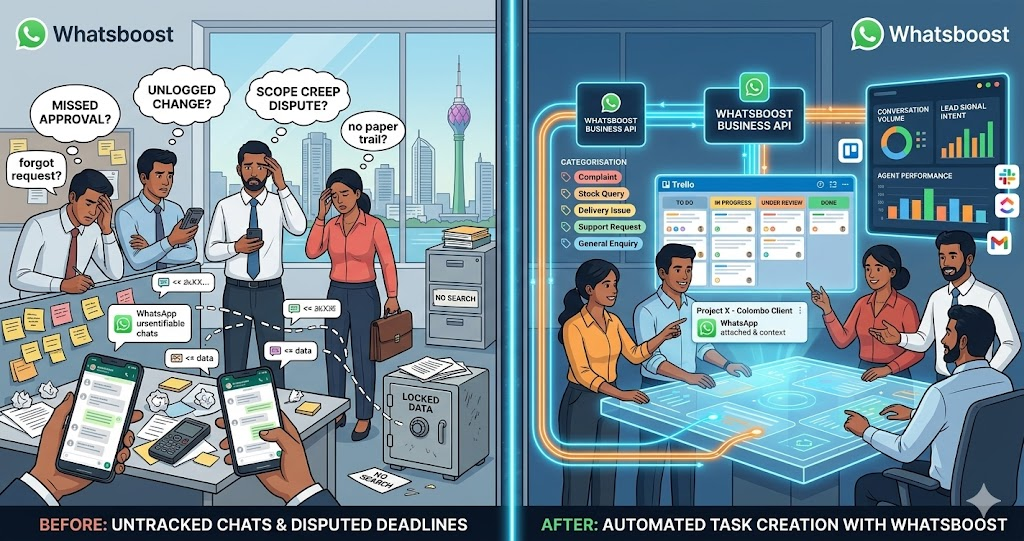
The gap between what clients say on WhatsApp and what actually gets logged in your project management tool is where Indian agencies, consultants, and service businesses lose the most time, money, and client trust. Deliverables are missed because the change request was not logged. Scope creep goes undocumented because the addition was agreed in a WhatsApp thread. Deadlines are disputed because nobody can find when the approval was given.
In 2026, turning WhatsApp client conversations into project tasks automatically is not a technical luxury — it is a project management standard for businesses that are serious about delivery quality and client accountability. This blog explains how to build this automation — and how Whatsboost provides the WhatsApp Business API layer that makes it work for Indian teams without custom development.
Why Client WhatsApp Conversations Must Connect to Your Project System
The root cause of the problem is architectural. WhatsApp is a conversational tool. Project management platforms — ClickUp, Trello, Asana, Notion — are structured task management systems. When these two systems operate independently, all the nuance, instruction, and agreement that flows through WhatsApp conversations is effectively invisible to the project management system.
This invisibility has real operational consequences for Indian service businesses:
Unlogged change requests become scope disputes. When a client requests a modification on WhatsApp and it is not immediately logged as a task in the project tool, there is no formal record of when the request was made, what was agreed, or who acknowledged it. When the project goes over budget or timeline, the absence of this record creates conflict.
Untracked approvals cause rework. When a client approves a deliverable on WhatsApp and the approval is not captured in the project management system, the project team may continue iterating on something the client has already confirmed — wasting hours of effort on work that was already complete.
Informal instructions break delivery accountability. When a manager or client sends instructions on WhatsApp that never make it to the project tool, the assigned team member has no formal task to work from — and no accountability framework in case the instruction is forgotten or misunderstood.
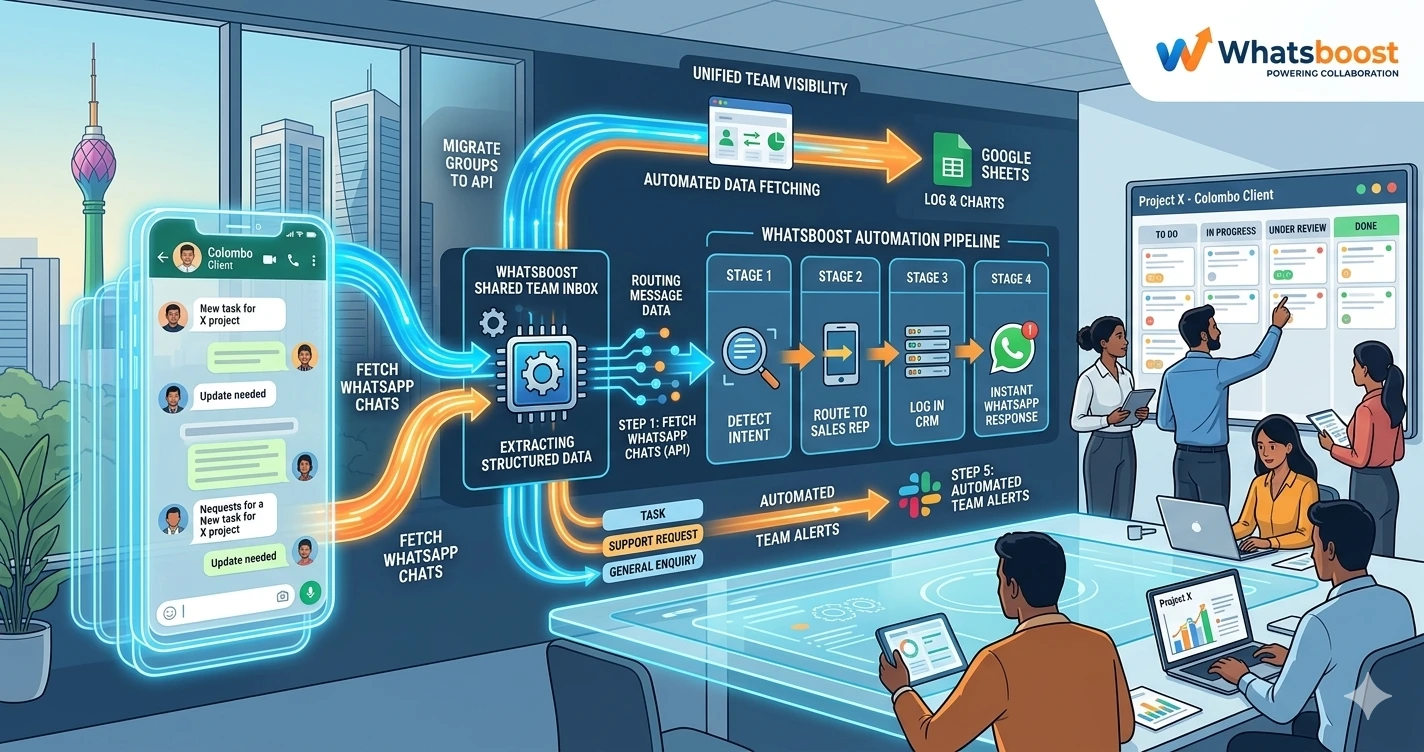
Automating the conversion of WhatsApp client conversations into project tasks directly solves all three of these problems. Whatsboost enables this conversion to happen in real time — the moment a relevant client message arrives, not hours later when a project manager finds time to manually log it. Visit Whatsboost.in to explore the platform.
What Automatically Converting WhatsApp Conversations to Tasks Looks Like
A well-configured WhatsApp to project task automation does not attempt to convert every message into a task — that would create noise that defeats the purpose. It is designed to identify specific types of client communication — change requests, approvals, new instructions, deadline revisions, feedback requiring action — and convert those specific message types into structured, tracked project tasks with full conversation context preserved.
From the client's perspective, nothing changes. They continue communicating on WhatsApp exactly as they always have. From the team's perspective, everything changes — relevant client messages appear as tasks in the project management tool within seconds of arrival, complete with the original message content, the client's name, the conversation thread, and a timestamp. The project system stays current with client communication in real time, without any manual bridging effort from the project manager.
Building the WhatsApp Client Conversation to Task Automation With Whatsboost
Step 1: Activate WhatsApp Business API via Whatsboost
The foundation of the entire automation is the WhatsApp Business API — which Whatsboost activates as an authorised WhatsApp Business Solution Provider. Without the API, programmatic message capture and real-time webhook firing are not available. This is the non-negotiable first step. Start at Whatsboost.in.
Step 2: Set Up Whatsboost Shared Team Inbox for Client Conversations
Move all client WhatsApp communication into Whatsboost's shared team inbox. This centralises every client conversation under a single, API-connected account — enabling every message to be captured, labelled, and processed for task creation regardless of which team member is managing the client relationship.
Configure client-specific conversation labels in Whatsboost — labelling each client's conversation with their name, project identifier, and service category. These labels become the routing logic that determines which project management board or workspace a task is created in when the client's message triggers the automation.
Step 3: Define Task Trigger Keywords and Conversation Labels
The quality of your task automation depends on precise trigger definition. Train your account managers and project team to apply specific conversation labels in Whatsboost when client messages require a project task to be created:
"Change Request" — Applied when a client requests a modification to an existing deliverable. "New Instruction" — Applied when a client introduces a new requirement or scope addition. "Approval Given" — Applied when a client confirms approval on a deliverable. "Deadline Revision" — Applied when a client requests a change to an agreed timeline. "Action Required" — Applied when a client message requires a specific team response or action.
Additionally, configure keyword detection in Whatsboost to automatically suggest or apply labels when trigger phrases are detected — "please change," "can you add," "approved," "by when," "I need" — reducing the labelling burden on the account management team and improving label consistency across all client conversations.
Step 4: Build the Conversation to Task Workflow in Zapier, Make, or Pabbly Connect
Create the automation workflow that fires when a Whatsboost conversation label is applied:
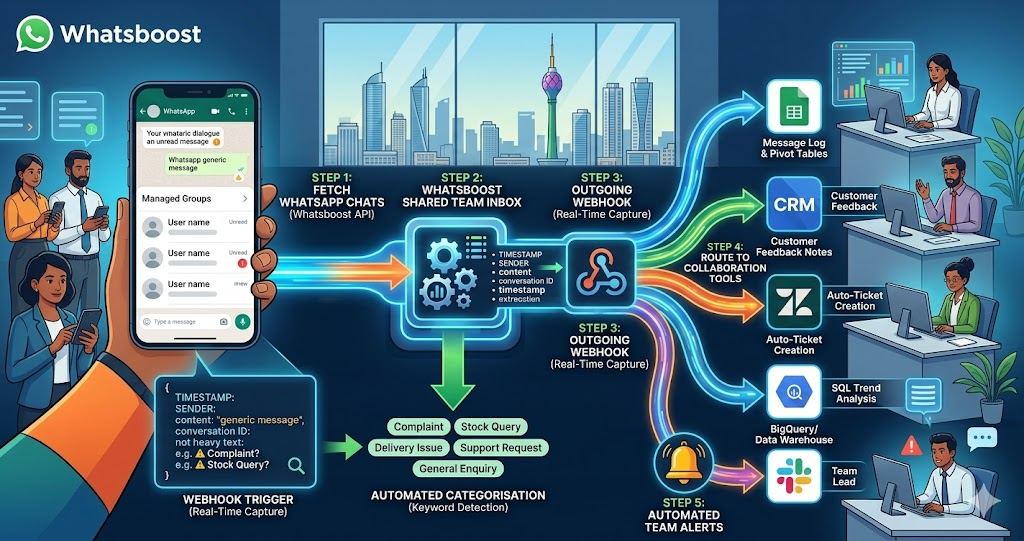
Trigger — Whatsboost webhook fires when a conversation label matching your task trigger list is applied to a client message.
Action 1 — Identify the correct project — Use the client identifier or project label in the conversation to determine which project management workspace, board, or list the task should be created in.
Action 2 — Create the task — In ClickUp, Trello, Asana, or Notion, create a new task with the label type as the task category (Change Request, New Instruction, etc.), the client message content as the task description, the client's name as the requester, and a default due date based on your team's standard response time for each task category.
Action 3 — Attach conversation context — Add the full WhatsApp conversation thread — or the specific message that triggered the task — as a comment or note on the task. This preserves the exact client language, tone, and context that the assigned team member needs to execute the work correctly.
Action 4 — Notify the assigned team member — Send a WhatsApp notification via Whatsboost to the project manager or team member responsible for the task — including the task category, client name, the original message, and a direct link to the task in the project management tool.
Action 5 — Acknowledge the client — Send an automated WhatsApp reply to the client confirming that their message has been received and is being actioned — including a task reference number and an expected response time. This simple acknowledgement manages client expectations and prevents follow-up chasers that interrupt the team's workflow.
Step 5: Set Up Task Completion Confirmation Back to WhatsApp
When a task created from a client WhatsApp message is marked complete in your project management tool, configure Whatsboost to automatically send the client a WhatsApp update — confirming the action has been taken and describing what was done. For change requests, this confirmation closes the loop on the original instruction. For approvals, it confirms the deliverable has been progressed. For deadline revisions, it confirms the updated timeline has been logged.
This completion notification requires zero manual effort from the project team and dramatically reduces client anxiety about whether their WhatsApp messages are actually being acted on. Visit Whatsboost.in for workflow configuration details.
Client Conversation Types That Generate the Most Valuable Automatic Tasks
Design and creative feedback — When clients share visual feedback or revision instructions on WhatsApp — "the logo needs to be larger," "change the headline colour," "this section needs rewriting" — automatic task creation ensures every feedback item is captured as a distinct, trackable revision task rather than a mixed list in a WhatsApp thread that requires a team member to manually parse.
Software and product change requests — When clients request feature changes, bug fixes, or UX modifications via WhatsApp, automatic task creation routes each item directly to the relevant engineering or product task board — with the client's exact description preserved as the task context.
Event and campaign approvals — When clients approve event logistics, campaign creatives, or proposal documents via WhatsApp, the automatic task creation captures the approval as a formal record in the project system — creating an audit trail that protects both the client and the service provider if deliverables or timelines are later disputed.
Best Practices for Converting WhatsApp Client Conversations to Project Tasks
Involve your account management team in the label convention design. The labelling system only works if the people applying labels find it intuitive and low-friction. Design the label names and categories with input from the account managers who will be applying them daily — and keep the total number of task trigger labels below eight to prevent decision fatigue.
Review unlabelled client conversations daily in the first two weeks. During the initial deployment period, check the Whatsboost inbox daily for client messages that should have triggered a task but did not receive a label. Use these missed triggers to refine your keyword detection rules and improve the automation's coverage before it is operating at full volume.
Use task reference numbers to anchor client communication. When every WhatsApp-generated task has a reference number — and every client acknowledgement message includes that reference — clients begin using the reference in follow-up messages. This creates a natural structured communication pattern that makes task tracking and conversation linking significantly cleaner over time.
Every Client Message Deserves to Become a Tracked Task
In 2026, Indian service businesses that have closed the gap between WhatsApp client communication and their project management system operate with a delivery accountability and client trust that informally managed WhatsApp communication cannot build. Every change request is documented. Every approval is on record. Every instruction becomes a task with an owner, a deadline, and a completion confirmation.
With Whatsboost powering your WhatsApp API layer and your chosen automation platform connecting it to your project management tool, turning WhatsApp client conversations into project tasks automatically is achievable for any Indian service business — from a two-person freelance operation to a 50-person agency.
Visit Whatsboost.in and start turning every client WhatsApp message into a tracked, managed project task today.
Want to automate WhatsApp for your business?
Set up campaigns, replies, and follow-ups in minutes.