
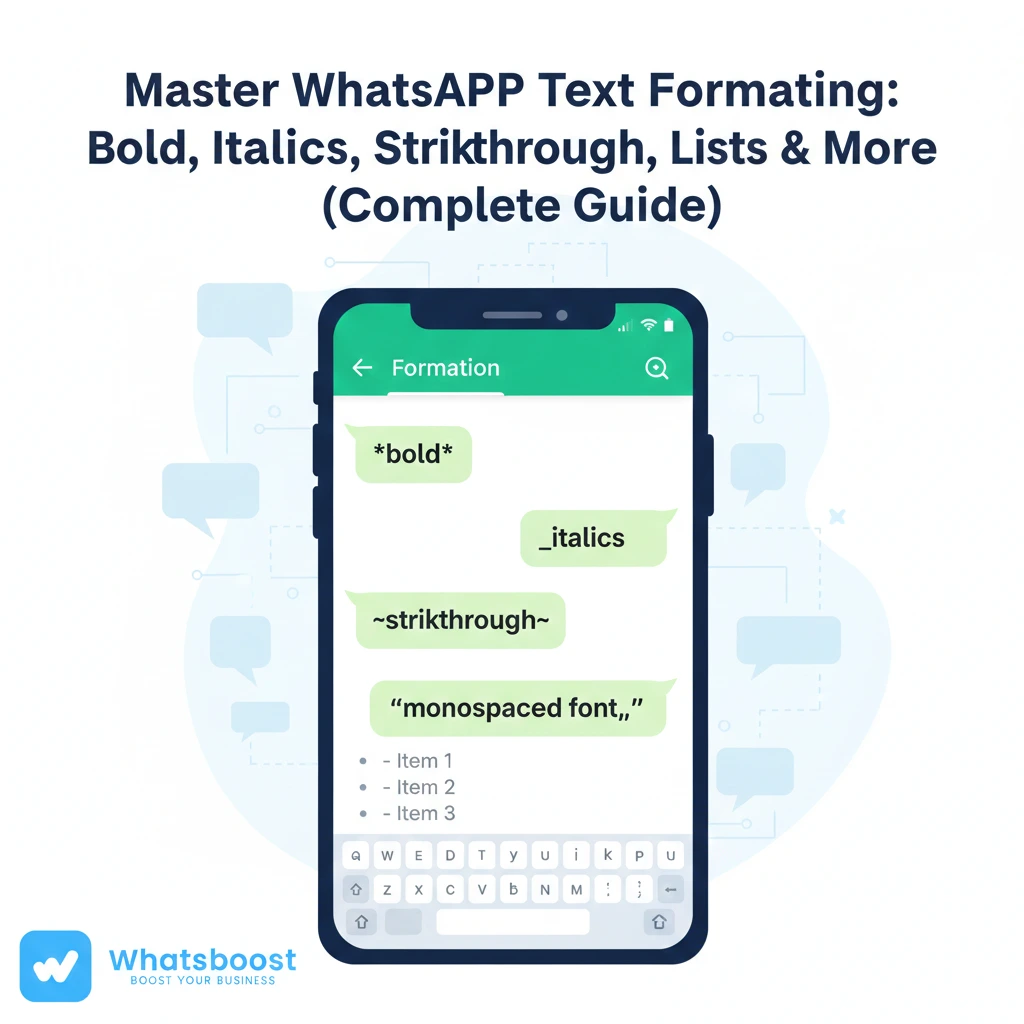
Master WhatsApp Text Formatting: Bold, Italics, Strikethrough, Lists & More (Complete Guide)
Master WhatsApp Text Formatting with bold, italics, strikethrough, monospace, block quotes, and lists. Learn step-by-step shortcuts and improve business communication with WhatsApp Automation using Whatsboost.
Master WhatsApp Text Formatting: Bold, Italics, Strikethrough, and More
Human attention spans are shrinking across every medium — not just social media. Long business messages on WhatsApp often go unread, ignored, or skimmed.
But here’s the truth: lengthy WhatsApp messages can still make an impact — if you know how to format them correctly.
When you master WhatsApp text formatting, you can:
Emphasize key information
Improve readability
Highlight deadlines
Show pricing changes clearly
Structure long updates professionally
Make business communication stand out
WhatsApp doesn’t offer visible formatting buttons like a word processor. However, you can use simple shortcuts to bold, italicize, strike through text, create lists, add block quotes, and even format inline code.
In this complete guide, you’ll learn how to use bold, italics, strikethrough, and more — plus how businesses can combine formatting with WhatsApp Automation tools like https://whatsboost.in/ to scale communication effectively.
Let’s get started.
Why WhatsApp Text Formatting Matters for Business
Whether you're sending:
Client proposals
Maintenance updates
Payment reminders
Sales offers
Internal team instructions
B2B negotiations
Formatting improves clarity and prevents miscommunication.
Instead of sending a dense block of text, you can structure messages to:
Draw attention to deadlines
Highlight pricing changes
Emphasize action steps
Separate key sections
For teams managing multiple WhatsApp Groups & Chats, formatting becomes even more critical. Structured communication reduces confusion — especially when handling customer queries at scale.
Now let’s explore how to master WhatsApp text formatting step by step.

How to Bold Text on WhatsApp
Bold formatting is ideal for:
Deadlines
Important updates
Pricing highlights
Meeting times
Urgent reminders
How to Make Text Bold
Type your message in the chat.
Add an asterisk (*) before and after the text you want to bold.
Example:
“Our team will be conducting maintenance on the server this Friday from 8 PM to 10 PM. Please ensure that all files are backed up.”
Once sent, the selected text will appear bold.
Important rule:
There must be no spaces between the asterisk and the text.
Correct:
Friday from 8 PM to 10 PM
Incorrect:
Friday from 8 PM to 10 PM *
Bold text helps ensure critical information is not missed in long WhatsApp business conversations.
How to Italicize Text on WhatsApp
Italics create subtle emphasis. They are ideal for:
Clarifications
Gentle reminders
Quotes
Internal notes
Soft disclaimers
How to Italicize Text
Type your message.
Add an underscore (_) before and after the text.
Example:
“We’ll be updating our pricing structure next month. Your current rates will remain the same until then.”
Italics are particularly effective when you want to emphasize reassurance without sounding aggressive.
How to Strikethrough Text on WhatsApp
Strikethrough formatting is a powerful psychological trigger in sales and marketing.
It is commonly used for:
Price revisions
Updated plans
Offer comparisons
Corrections
Plan changes
How to Apply Strikethrough
Type your message.
Add a tilde (~) before and after the text.
Example:
“Original Plan: ~₹15,000~
Revised Offer: ₹9,999”
This makes the discount visually impactful.
Sales teams using automated messaging workflows via https://whatsboost.in/ often combine strikethrough formatting with promotional broadcasts to increase conversion rates.
How to Combine Formatting Styles
You can combine multiple formatting styles in WhatsApp.
Example:
~Limited Time Offer~
This applies bold, italics, and strikethrough simultaneously.
Combination formatting works well for:
Flash sales
Urgent alerts
Important corrections
Campaign countdowns
However, use this carefully. Over-formatting reduces impact.
How to Create Bulleted Lists on WhatsApp
WhatsApp doesn’t offer a built-in bullet tool like Word or Google Docs — but you can create manual lists.
Bulleted lists are perfect for:
Project tasks
Agenda points
Deliverables
Feature lists
Onboarding instructions
Steps to Create a Bulleted List
Open WhatsApp chat.
Type a dash (-) or asterisk (*) followed by a space.
Write your text.
Press Enter and repeat.
Example:
Confirm meeting time
Share presentation
Send contract draft
Schedule follow-up
This improves readability significantly in business conversations.
How to Create Numbered Lists on WhatsApp
Numbered lists are ideal for:
Step-by-step instructions
Process explanations
SOP guidelines
Order confirmations
Steps to Create Numbered Lists
Type a number followed by a period.
Add a space.
Write the item.
Press Enter and continue.
Example:
Submit documents
Complete verification
Sign agreement
Receive confirmation
For businesses automating onboarding workflows, combining numbered lists with WhatsApp Automation ensures clarity at scale.
Using Monospace in WhatsApp
Monospace formatting makes text appear in a fixed-width font. It is ideal for:
Code snippets
System commands
API keys
Order IDs
Tracking numbers
How to Use Monospace
Add three backticks (```) before and after your text.
Example:
ORDER ID: 45829XK
This makes the content visually distinct.
If you're sharing API keys while setting up automation inside Whatsboost, monospace ensures clarity and avoids formatting errors.
How to Use Inline Code Formatting
Inline code is useful for short technical references.
Steps
Type your message.
Add a single backtick (`) before and after text.
Example:
Use @c.us format while mapping chat IDs.
This is extremely useful when explaining automation setups or CRM integrations.
How to Create Block Quotes in WhatsApp
Block quotes help highlight a section of text.
They are perfect for:
Policy references
Official statements
Client responses
Escalation messages
Steps
Start your line with a greater-than sign (>).
Add a space.
Type your text.
Example:
Please confirm the signed agreement before 5 PM.
Block quotes are especially helpful in WhatsApp Groups & Chats where multiple participants are responding simultaneously.
Common Problems with WhatsApp Text Formatting
Even though formatting is simple, issues can occur.
1. Spaces
Incorrect spacing breaks formatting.
Correct:
Important
Incorrect:
Important *
2. Version Compatibility
Ensure WhatsApp is updated.
3. Platform Differences
Formatting may appear slightly different on:
iOS
Android
WhatsApp Web
Desktop
4. Overuse
Too much formatting makes messages look spammy.
Keep formatting strategic and purposeful.
Why Master WhatsApp Text Formatting for B2B Communication
In B2B environments:
Deals involve multiple stakeholders
Messages are long and detailed
Clarity is critical
Deadlines matter
Documentation must be precise
Proper formatting ensures:
Important information is not missed
Conversations remain structured
Customers feel professionalism
Communication is persuasive
Businesses using https://whatsboost.in/ to manage high-volume communication benefit even more when formatted messages are combined with automation workflows.
Imagine:
Payment reminders with bold due dates
Discount offers with strikethrough pricing
Onboarding instructions with numbered steps
Technical updates with monospace commands
Formatting + automation = clarity at scale.

How Whatsboost Enhances Formatted Messaging
Formatting alone is helpful. But at scale, manual formatting becomes repetitive.
With Whatsboost, you can:
Send automated messages with formatted text
Manage multiple WhatsApp numbers
Create rules-based workflows
Automate replies
Monitor WhatsApp Groups & Chats
Integrate CRM systems
Instead of manually typing formatted reminders every time, you can build structured templates and automate them.
Explore advanced features at https://whatsboost.in/.
Best Practices for WhatsApp Text Formatting in Business
Use bold for deadlines only
Use italics for soft emphasis
Use strikethrough for pricing revisions
Use lists for clarity
Avoid excessive formatting
Keep paragraphs short
Use white space effectively
Combine formatting with automation
Well-formatted messages increase engagement and reduce back-and-forth confusion.
Frequently Asked Questions (FAQs)
Can I underline text in WhatsApp?
WhatsApp does not natively support underlining. You may use Unicode generators, but results vary across devices.
How do I remove formatting?
Delete the special characters (*, _, ~, `).
Does formatting work on WhatsApp Web and Desktop?
Yes. The same shortcuts apply across platforms.
Can I combine formatting styles?
Yes. Example: ~text~
Why isn’t my formatting working?
Check for:
Extra spaces
Incorrect symbols
Outdated app version
FAQs About Whatsboost Automation
What is Whatsboost?
Whatsboost is a WhatsApp Automation platform that helps businesses manage WhatsApp Groups & Chats at scale.
Can I automate formatted messages?
Yes. You can create automated replies with bold, italics, lists, and more.
Does Whatsboost require WhatsApp Business API?
No. You can use standard WhatsApp numbers.
Can I manage multiple numbers?
Yes. Whatsboost supports multi-number management.
Is it suitable for B2B teams?
Absolutely. It is ideal for sales, marketing, support, and operations teams handling large volumes of WhatsApp conversations.
Final Thoughts: Master WhatsApp Text Formatting Today
If you want your business messages to stand out, you must master WhatsApp text formatting.
Bold highlights urgency.
Italics add subtle emphasis.
Strikethrough drives sales psychology.
Lists improve clarity.
Monospace adds technical precision.
Block quotes emphasize authority.
When combined with WhatsApp Automation tools like Whatsboost, formatted communication becomes scalable, professional, and highly effective.
Start formatting smarter — and transform how your business communicates on WhatsApp.
Want to automate WhatsApp for your business?
Set up campaigns, replies, and follow-ups in minutes.