How to Fetch WhatsApp Chats and Store Them in Google Sheets Automatically in 2026 | Whatsboost
Learn how to fetch WhatsApp chats and store them in Google Sheets automatically in 2026. Discover step-by-step setup, practical workflows, and how Whatsboost helps Indian businesses log WhatsApp conversations for reporting, CRM, and analytics.
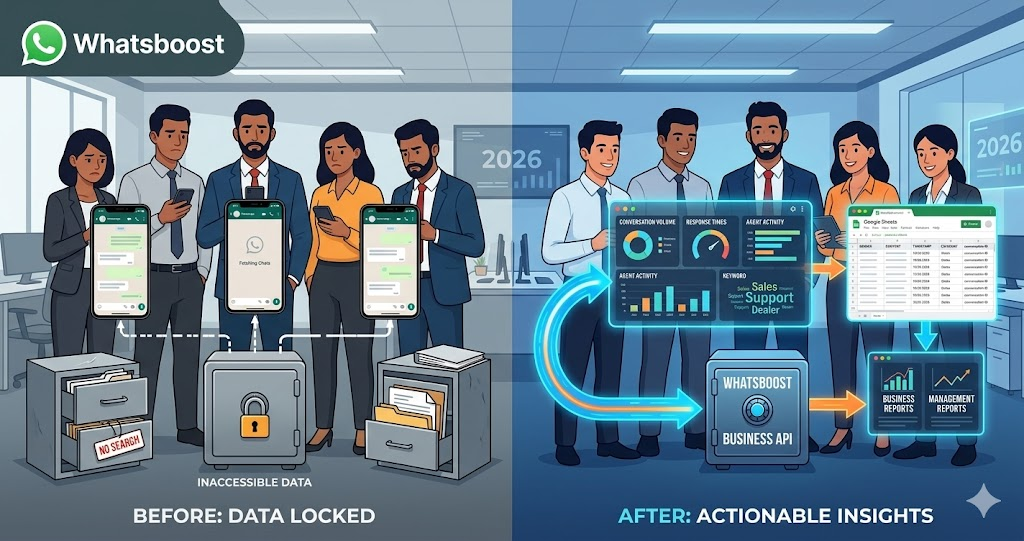
WhatsApp is where Indian businesses have some of their most valuable conversations — with customers, leads, dealers, and support contacts. But for most businesses, those conversations exist only in the WhatsApp inbox. They are not searchable across time. They are not accessible to team members who were not part of the conversation. They generate no reports, no trend data, and no audit trail. And when a phone is changed, an account is migrated, or a team member leaves, the conversation history can simply disappear.
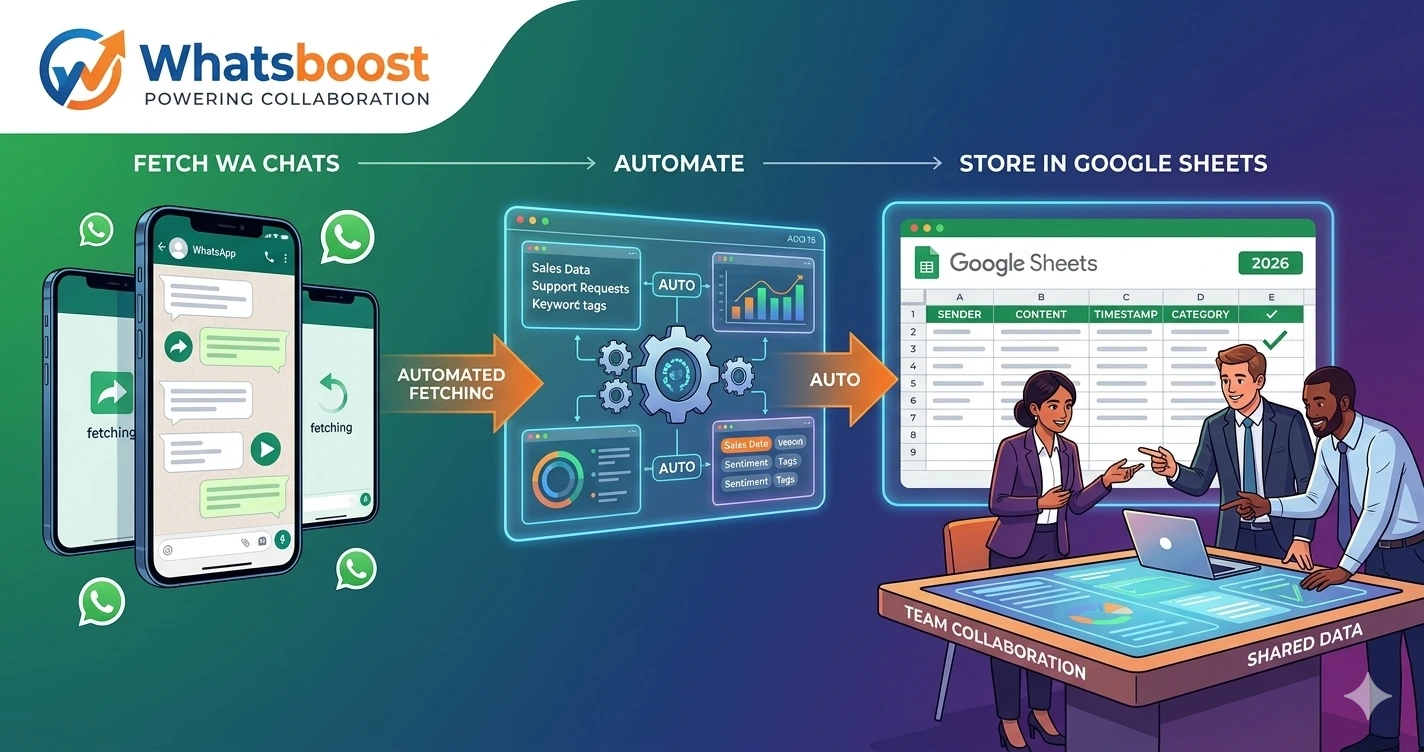
The solution is straightforward: fetch WhatsApp chats automatically and store them in Google Sheets — a platform that every Indian business already uses, everyone on the team can access, and that turns raw chat data into searchable, filterable, analysable records within seconds of each message arriving.
In 2026, this WhatsApp to Google Sheets automation is one of the most practical and impactful workflows an Indian business can implement — requiring no custom development, no complex infrastructure, and delivering immediate value from day one. This blog explains exactly how to build it, and how Whatsboost makes the entire process reliable and scalable.
Why Storing WhatsApp Chats in Google Sheets Creates Business Value
Before the setup guide, it is worth being precise about what this automation actually delivers — because the value goes well beyond simple record-keeping.
Complete conversation audit trail — Every message sent and received is logged with sender details, content, and timestamp — creating a permanent, searchable record of all customer and business communication that is accessible to every authorised team member, not just the individual who handled the conversation.
Real-time sales and support reporting — When WhatsApp chat data flows automatically into Google Sheets, managers can build live dashboards that show message volumes, response times, agent activity, and conversation outcomes — without manually compiling reports from individual inboxes.
Lead and customer data centralisation — Every new WhatsApp contact who messages your business is automatically logged in Google Sheets with their name, phone number, first message, and timestamp — creating a continuously updated contact database that feeds your CRM and sales pipeline.
Compliance and quality assurance — For Indian businesses in regulated industries — financial services, insurance, healthcare, legal — maintaining a structured record of customer communication is not optional. Automatically storing WhatsApp chats in Google Sheets creates the documentation trail that compliance and quality reviews require.
Cross-team visibility — Sales, support, and management teams can all access the same WhatsApp conversation data in Google Sheets simultaneously — eliminating the information silos that occur when customer communication is distributed across individual team members' devices.
Whatsboost provides the WhatsApp Business API and webhook infrastructure that makes this data flow possible in real time. Visit Whatsboost.in to explore how it works.
How Fetching WhatsApp Chats Into Google Sheets Works
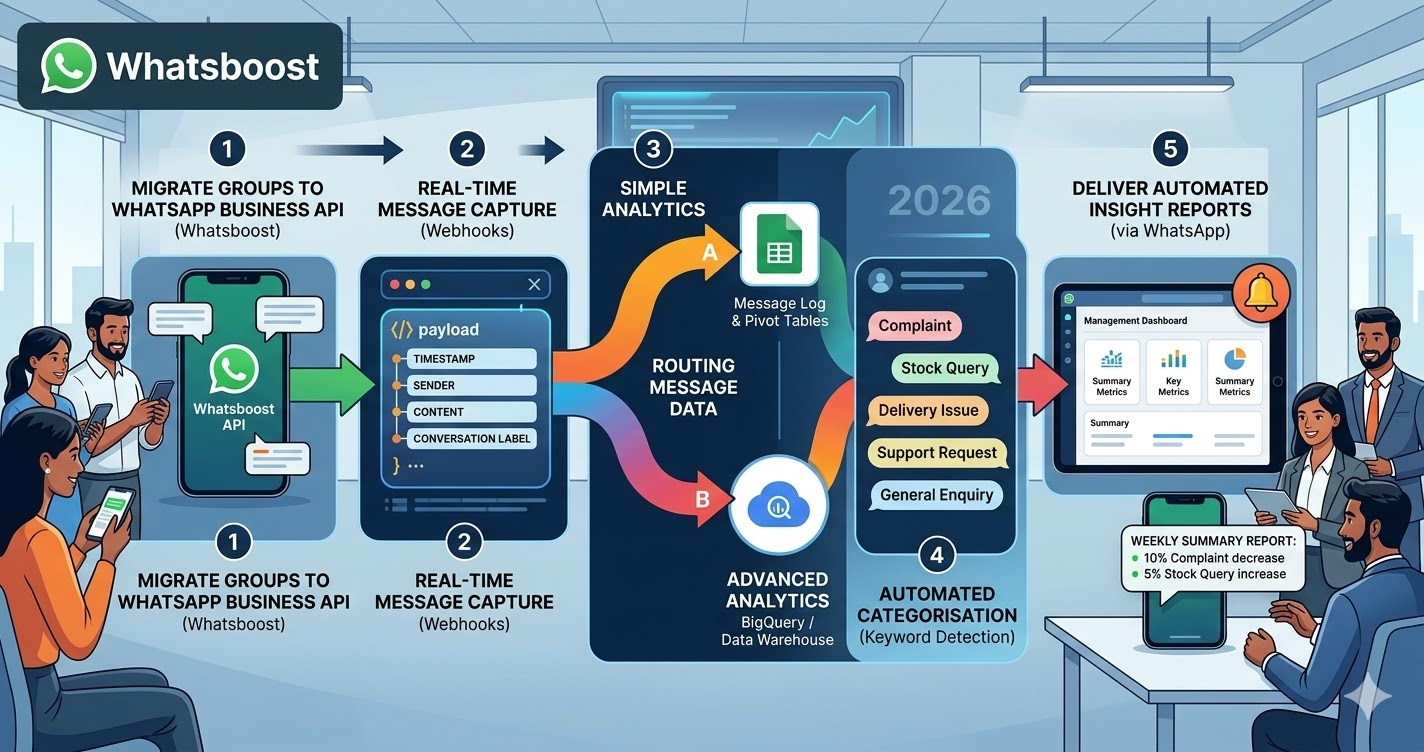
The technical flow connects three components: Whatsboost's WhatsApp Business API capturing every message, a webhook delivering that message data in real time, and an automation platform routing the data into the correct Google Sheets row.
When a customer sends a WhatsApp message to your business number, Whatsboost captures it instantly and fires an outgoing webhook containing the message payload — sender phone number, sender name if available, message content, message type (text, image, document, voice note), timestamp, conversation label, and the assigned agent identifier.
This webhook is received by your automation platform — Zapier, Make, or Pabbly Connect — which processes the data and appends a new row to your designated Google Sheet with every field populated. The entire process — from the customer tapping Send to the row appearing in Google Sheets — takes seconds.
For outbound messages sent by your team through Whatsboost, the same webhook fires in reverse — capturing agent name, message content, and timestamp, so the Google Sheet contains the complete bidirectional conversation thread, not just inbound messages.
Step-by-Step Setup: Fetch WhatsApp Chats Into Google Sheets With Whatsboost
Step 1: Activate WhatsApp Business API via Whatsboost
The WhatsApp Business API is the essential foundation — without it, programmatic message capture and real-time webhook delivery are not available. Whatsboost is an authorised WhatsApp Business Solution Provider that activates your API quickly with comprehensive onboarding support. Start at Whatsboost.in.
Step 2: Set Up Your Google Sheet Structure
Before connecting the automation, prepare your Google Sheet with the column headers that match the data fields in the Whatsboost webhook payload. A well-structured sheet for WhatsApp chat logging typically includes these columns:
Timestamp, Contact Name, Phone Number, Message Direction (Inbound/Outbound), Message Type, Message Content, Conversation Label, Assigned Agent, Conversation ID.
Adding a Conversation ID column is particularly valuable — it allows you to group all messages from a single conversation thread using a filter, enabling you to reconstruct the complete exchange chronologically from the row-by-row log.
Step 3: Enable Outgoing Webhooks in Whatsboost
In your Whatsboost account settings, activate outgoing webhooks for both inbound and outbound messages. Configure the webhook to fire on every message event and ensure the payload includes all the data fields your Google Sheet is structured to receive. Copy the webhook endpoint URL that your automation platform will use to receive the data.
Step 4: Build the Automation Workflow in Zapier, Make, or Pabbly Connect
Create a new automation with the following structure:
Trigger — Webhook received from Whatsboost containing a new message event.
Action 1 — Parse the webhook payload to extract the relevant data fields: timestamp, contact name, phone number, message direction, message type, content, label, agent, and conversation ID.
Action 2 — Search the Google Sheet for an existing row with the same conversation ID to determine if this message is part of an ongoing conversation or a new one.
Action 3 — Append a new row to the Google Sheet with all parsed data fields populated in the correct columns.
Action 4 (Optional) — If the message is from a new contact not previously seen in the sheet, trigger an additional action — such as adding the contact to a CRM, creating a lead record in HubSpot or Zoho, or sending an internal Slack notification to the relevant team.
Step 5: Configure Label-Based Sheet Routing for Organised Data Management
For businesses managing multiple communication streams — sales enquiries, support requests, dealer communications, and customer communities — configure your automation to route WhatsApp chats to different Google Sheet tabs based on the conversation label applied in Whatsboost.
Sales enquiries go to a Sales tab. Support conversations go to a Support tab. Dealer messages go to a Dealer Network tab. This label-based routing keeps your data organised from the moment it arrives — making reporting and analysis faster and ensuring each team accesses only the data relevant to their function.
Visit Whatsboost.in to see how conversation labelling works in the Whatsboost shared team inbox.
Advanced Workflows Built on WhatsApp Google Sheets Integration
Automated lead scoring from chat data — Configure your automation to detect qualifying keywords in incoming WhatsApp messages — "price," "demo," "buy," "interested," "how much" — and automatically add a Lead Score column value to the corresponding Google Sheet row. Sales managers reviewing the sheet can instantly filter by lead score to prioritise follow-up.
Daily chat volume summary report — Build a Google Sheets formula that counts messages by category, agent, and direction each day, and configure Whatsboost to send an automated WhatsApp summary message to the management team each morning — reporting yesterday's conversation volume, busiest hours, and top message categories without any manual reporting effort.
Escalation detection and alert — Configure your automation to monitor incoming message content for escalation keywords — "complaint," "urgent," "unresolved," "manager," "legal" — and when detected, trigger an immediate WhatsApp alert to the support manager alongside the standard Google Sheet logging — ensuring critical messages receive urgent attention in real time.
Contact deduplication and enrichment — When a new WhatsApp message arrives from a phone number already present in the Google Sheet, the automation can detect the duplicate, retrieve the contact's full history, and pass it to the assigned agent in Whatsboost — ensuring agents always have complete prior conversation context before responding.
Best Practices for WhatsApp Chat to Google Sheets Automation
Keep your sheet structure simple and consistent from day one. Adding columns after the automation is live requires updating your webhook parsing and automation workflow simultaneously — a process that introduces errors if done carelessly. Define your full column structure before activating the automation and resist the temptation to add ad hoc columns outside the workflow.
Apply consistent conversation labels in Whatsboost. The value of label-based sheet routing depends entirely on labelling discipline. Train every agent to apply the correct conversation label before closing a chat — because incorrectly labelled conversations will route to the wrong sheet tab and corrupt your reporting data.
Archive completed rows regularly. A Google Sheet accumulating thousands of chat rows without archiving will eventually become slow to load and difficult to navigate. Schedule a monthly data archiving process — moving resolved conversation rows to an archive sheet — to keep your active sheet fast, clean, and usable.
Every WhatsApp Conversation Your Business Has Deserves to Be Recorded
In 2026, Indian businesses that systematically fetch WhatsApp chats and store them in Google Sheets automatically operate with a level of transparency, accountability, and analytical capability that informal WhatsApp management simply cannot provide. Every conversation is preserved. Every agent is accountable. Every trend is visible. And every decision is informed by real data rather than recalled impressions.
With Whatsboost powering your WhatsApp API layer and your favourite automation platform connecting it to Google Sheets, this capability is available to any Indian business — from a two-person startup to a multi-team enterprise — without custom development or technical complexity.
Visit Whatsboost.in and start fetching your WhatsApp chats into Google Sheets automatically today.
Want to automate WhatsApp for your business?
Set up campaigns, replies, and follow-ups in minutes.