
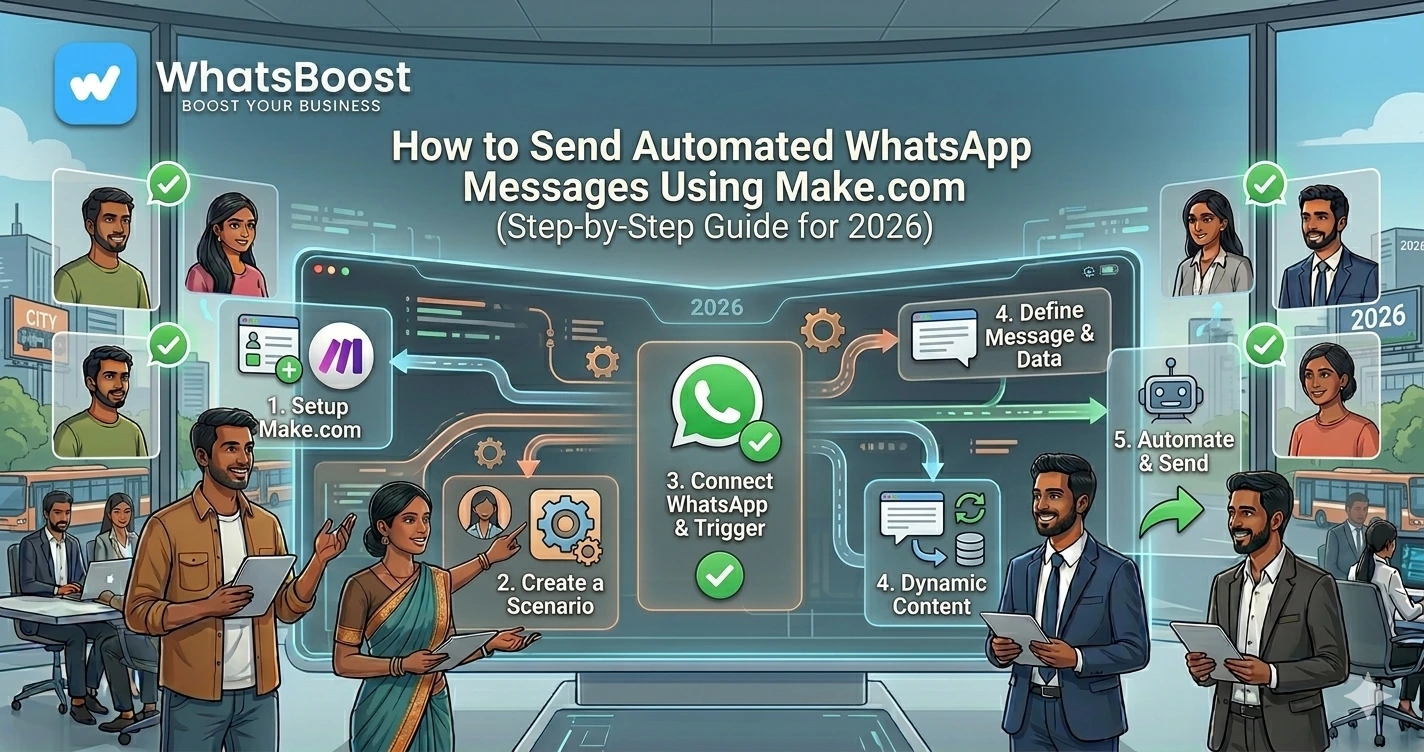
How to Send Automated WhatsApp Messages Using Make.com (Step-by-Step Guide for 2026)
Learn how to send automated WhatsApp messages using Make.com. Discover how businesses automate lead follow-ups, CRM notifications, appointment reminders, and customer communication using WhatsApp workflows.
How to Send Automated WhatsApp Messages Using Make.com
WhatsApp has become the primary communication channel for many businesses.
Whether you're generating leads, managing customers, scheduling appointments, or sending payment reminders, WhatsApp is often where conversations happen.
The problem?
Most businesses still send messages manually.
As customer inquiries increase, teams struggle with:
❌ Delayed responses
❌ Missed follow-ups
❌ Forgotten reminders
❌ Inconsistent communication
❌ Administrative overload
This is where Make.com becomes valuable.
By connecting WhatsApp with your business systems, Make.com can automatically send messages whenever specific events occur.
Instead of manually sending updates, the workflow handles everything for you.
Let's look at how it works.
What Is Make.com?
Make.com is a visual workflow automation platform that allows businesses to connect apps and automate processes.
It can integrate with:
- CRM platforms
- Google Sheets
- Calendars
- Forms
- Payment systems
- AI tools
- Internal databases
Businesses often use Make.com to automate repetitive tasks and eliminate manual data transfer between systems.
Many organizations first build foundational workflows similar to How to Integrate CRM With WhatsApp for Automation.
Why Automate WhatsApp Messages?
Manual messaging works when you're handling a few conversations.
It becomes difficult when you're managing:
- Hundreds of leads
- Customer support requests
- Appointment reminders
- Payment collections
- Event registrations
Automation helps by ensuring every message is sent at the right time.
Benefits include:
✔ Faster response times
✔ Better customer experience
✔ Consistent communication
✔ Reduced manual work
✔ Improved conversion rates
Common WhatsApp Message Automation Scenarios
Before building workflows, let's look at some common use cases.
Lead Follow-Up
A lead submits a form.
↓
WhatsApp sends a welcome message automatically.
Businesses often combine this with strategies from WhatsApp Lead Generation Strategies for Coaches, Consultants, and Agencies.
CRM Updates
A new lead enters the CRM.
↓
WhatsApp sends a personalized follow-up.
This ensures sales teams engage prospects quickly.
Appointment Reminders
Appointment booked.
↓
Reminder sent 24 hours before the meeting.
↓
Reminder sent again 1 hour before the meeting.
This helps reduce no-shows.
Payment Reminders
Invoice generated.
↓
WhatsApp notification sent.
↓
Automatic reminder before due date.
Many businesses use workflows similar to How to Send Payment Reminders on WhatsApp Automatically.
Step 1: Connect WhatsApp to Make.com
The first step is connecting WhatsApp to your workflow.
Depending on your setup, this may involve:
- WhatsApp Business integrations
- WhatsApp automation platforms
- API connectors
- Third-party integrations
Once connected, Make.com can send and receive message data automatically.
Step 2: Choose a Trigger
Every automation starts with a trigger.
Examples include:
New Form Submission
Customer completes a website form.
CRM Lead Created
New prospect enters your sales pipeline.
Appointment Scheduled
Calendar booking confirmed.
Payment Due
Invoice approaching its due date.
Support Ticket Created
Customer requests assistance.
The trigger determines when WhatsApp messages should be sent.
Step 3: Configure Message Logic
After selecting a trigger, define the message.
Example:
Trigger: New Lead Submitted
Message:
"Hi {{Name}}, thank you for your enquiry. Our team will contact you shortly."
Dynamic fields can personalize messages automatically.
Examples:
- Customer Name
- Appointment Date
- Invoice Amount
- Order Number
- Event Details
Personalization improves engagement.
Step 4: Add CRM Integration
Most businesses don't want WhatsApp operating independently.
Customer information should stay synchronized with CRM systems.
A common workflow looks like:
Lead Submitted
↓
CRM Updated
↓
WhatsApp Message Sent
↓
Sales Representative Assigned
↓
Follow-Up Scheduled
Many organizations implement workflows similar to How to Build a WhatsApp Lead Tracking System Using Claude AI and Google Sheets.
This ensures customer data remains organized.
Step 5: Add Conditional Logic
One of Make.com's biggest strengths is workflow flexibility.
Example:
If Lead Score > 80
↓
Assign to Senior Sales Representative
↓
Send Priority Follow-Up
If Lead Score < 80
↓
Enter Nurture Campaign
↓
Send Educational Content
Conditional logic helps create more intelligent automation.
Step 6: Test the Workflow
Before launching, test:
✔ Trigger activation
✔ Data mapping
✔ Message formatting
✔ CRM synchronization
✔ Error handling
Testing helps prevent communication issues.
Advanced WhatsApp Automation Using AI
Businesses increasingly combine Make.com with AI.
Examples include:
AI Lead Qualification
AI analyzes incoming enquiries and determines lead quality.
AI Customer Support
Automatically answer common questions.
Organizations often evaluate models using guides such as Claude vs ChatGPT for WhatsApp Customer Support Automation.
AI Follow-Up Recommendations
Suggest next actions based on customer behavior.
AI Sentiment Analysis
Identify unhappy customers automatically.
AI adds intelligence to automation workflows.
Example Make.com WhatsApp Workflow
A typical business workflow may look like:
Website Form Submitted
↓
Make.com Trigger Activated
↓
Lead Added to CRM
↓
AI Qualifies Lead
↓
WhatsApp Welcome Message Sent
↓
Sales Team Notified
↓
Follow-Up Scheduled
↓
Dashboard Updated
Everything happens automatically.
Popular Automated WhatsApp Messages Businesses Send
Welcome Messages
Immediately engage new leads.
Appointment Reminders
Reduce missed meetings.
Payment Notifications
Improve collection rates.
Customer Support Updates
Keep customers informed.
Event Reminders
Increase attendance.
Feedback Requests
Collect customer insights.
Many businesses expand into larger automation systems similar to 25 WhatsApp Automation Scenarios You Can Build Using Make.com.
Benefits of WhatsApp Automation with Make.com
| Manual Process | Automated Workflow |
| Manual messaging | Automatic communication |
| Delayed responses | Instant engagement |
| Repetitive work | Workflow automation |
| Missed follow-ups | Consistent outreach |
| Data silos | Connected systems |
| Limited scalability | Growth-ready operations |
Common Mistakes to Avoid
Over-Automating Conversations
Not every conversation should be handled entirely by automation.
Ignoring CRM Synchronization
Keep customer data centralized.
Sending Generic Messages
Use personalization whenever possible.
Skipping Testing
Always test workflows before deployment.
Not Using AI Where Appropriate
AI can significantly improve automation effectiveness.
How WhatsBoost Helps Businesses Automate WhatsApp Messaging
WhatsBoost helps businesses implement:
✔ WhatsApp Automation
✔ Make.com Workflow Development
✔ CRM Integrations
✔ AI Agent Workflows
✔ Lead Qualification Systems
✔ Customer Support Automation
✔ Appointment Reminder Systems
✔ Reporting Dashboards
Whether you're automating sales, support, scheduling, or customer communication, WhatsBoost helps build workflows that save time and improve results.
Final Conclusion
Automating WhatsApp messages with Make.com allows businesses to communicate faster, reduce manual work, and improve customer experiences.
By connecting WhatsApp with CRMs, forms, calendars, AI tools, and business systems, organizations can automate everything from lead follow-ups to appointment reminders and payment notifications.
The businesses growing fastest in 2026 aren't sending more messages manually.
They're building automated communication systems that work around the clock.
👉 The future is: WhatsApp + Make.com + CRM + AI + Automation = Smarter Customer Communication 🚀
Want to automate WhatsApp for your business?
Set up campaigns, replies, and follow-ups in minutes.